# Crear

##### <span style="font-size: 12pt; font-family: Arial; color: #333333; background-color: transparent; font-weight: 400; font-style: normal; font-variant: normal; text-decoration: none; vertical-align: baseline; white-space: pre-wrap;">Este asistente es un proceso guiado de manera rápida, para ingresar a este deberá presionar el botón de "crear" ubicado en la sección de módulos de administración de cliente.</span>

<span style="font-size: 12pt; font-family: Arial; color: #333333; background-color: transparent; font-weight: bold; font-style: normal; font-variant: normal; text-decoration: none; vertical-align: baseline; white-space: pre-wrap;">Pasos a seguir:</span>

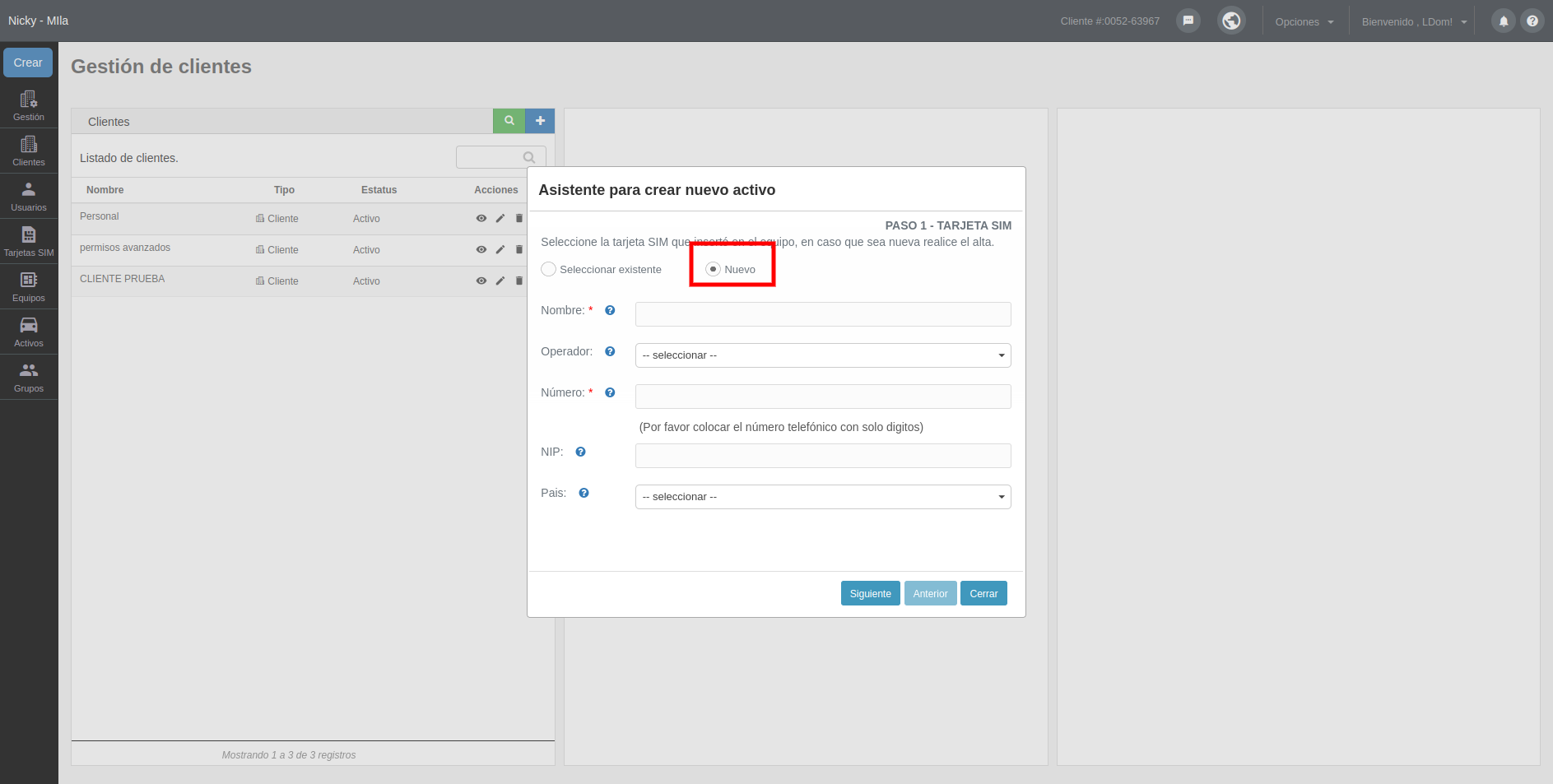
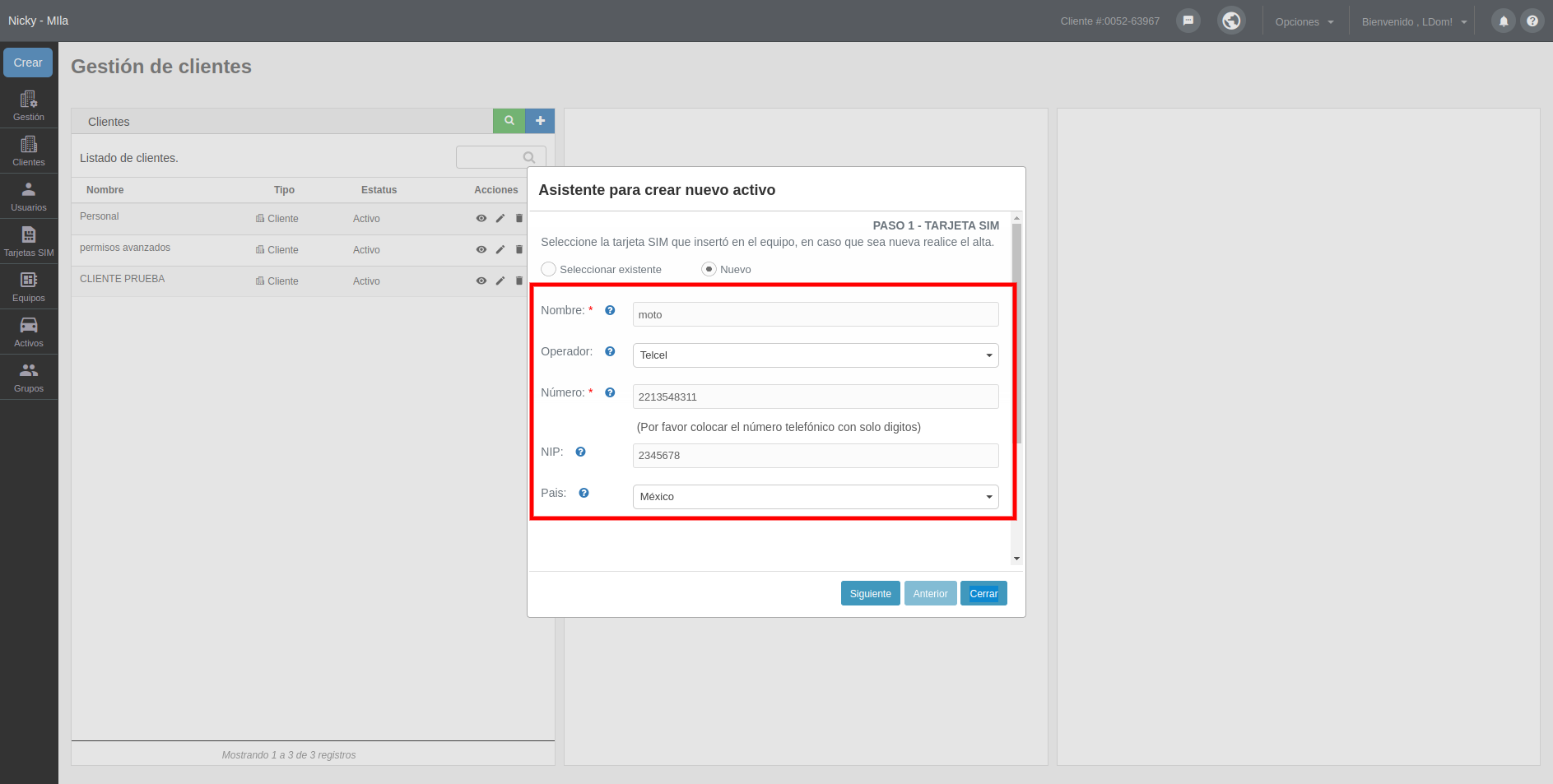
<span style="font-size: 12pt; font-family: Arial; color: #333333; background-color: transparent; font-weight: 400; font-style: italic; font-variant: normal; text-decoration: none; vertical-align: baseline; white-space: pre-wrap;">- Paso 1. TARJETA SIM,</span><span style="font-size: 12pt; font-family: Arial; color: #333333; background-color: transparent; font-weight: 400; font-style: normal; font-variant: normal; text-decoration: none; vertical-align: baseline; white-space: pre-wrap;"> seleccione la tarjeta SIM que insertó en el equipo, si no está creada marque el campo nuevo y deberá completar la información del formulario.</span>

[![crearonpartners.png](https://docs.redgps.com/uploads/images/gallery/2024-08/scaled-1680-/crearonpartners.png)](https://docs.redgps.com/uploads/images/gallery/2024-08/crearonpartners.png)

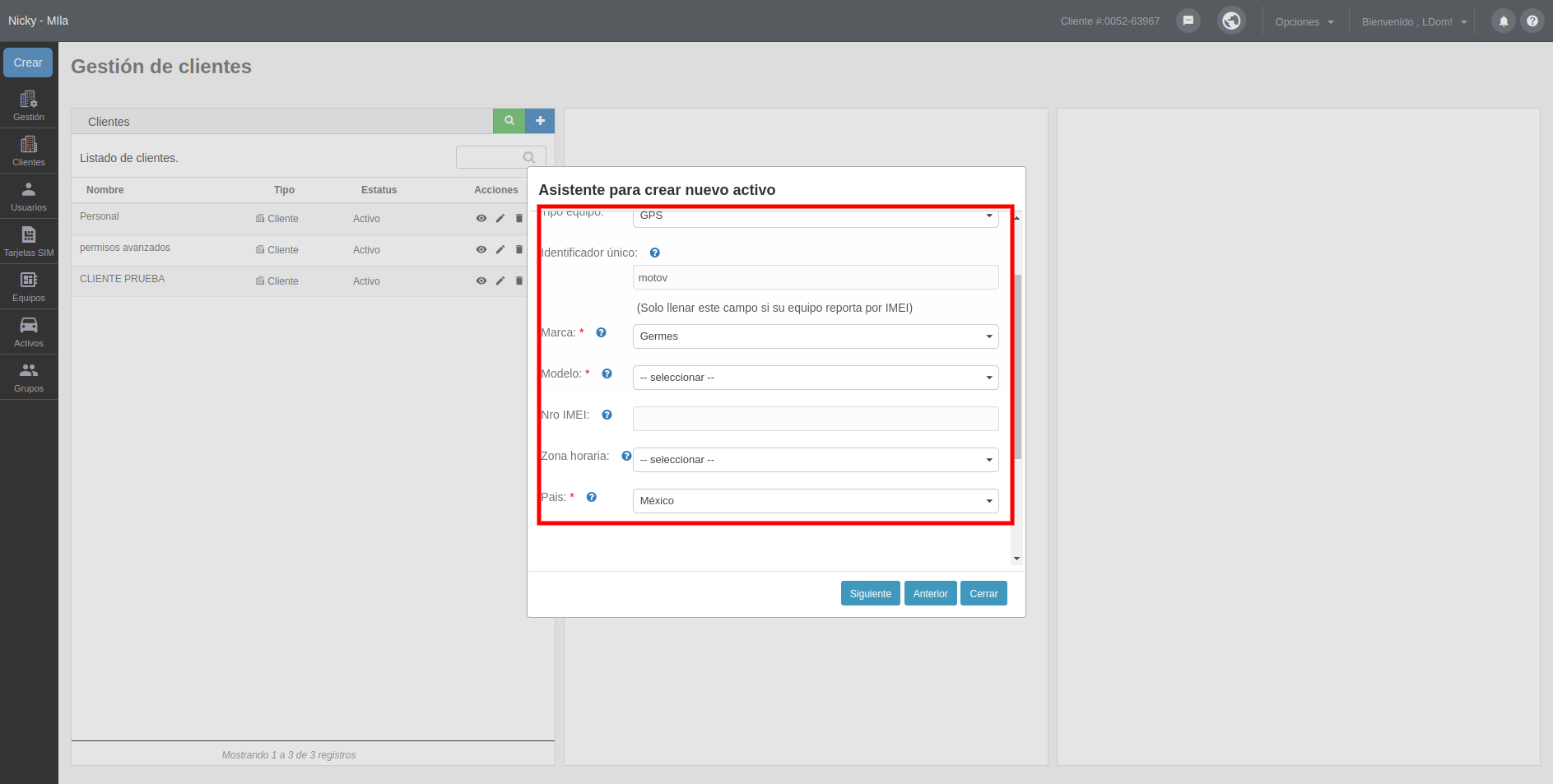
<span style="font-size: 12pt; font-family: Arial; color: #333333; background-color: transparent; font-weight: 400; font-style: italic; font-variant: normal; text-decoration: none; vertical-align: baseline; white-space: pre-wrap;">- Paso 2. EQUIPO, </span><span style="font-size: 12pt; font-family: Arial; color: #333333; background-color: transparent; font-weight: 400; font-style: normal; font-variant: normal; text-decoration: none; vertical-align: baseline; white-space: pre-wrap;">seleccione el equipo que instaló en el activo, en caso que no este creado complete el formulario del campo "nuevo" .</span>

[![crear2onparters.png](https://docs.redgps.com/uploads/images/gallery/2024-08/scaled-1680-/crear2onparters.png)](https://docs.redgps.com/uploads/images/gallery/2024-08/crear2onparters.png)

<span style="font-size: 12pt; font-family: Arial; color: #333333; background-color: transparent; font-weight: 400; font-style: italic; font-variant: normal; text-decoration: none; vertical-align: baseline; white-space: pre-wrap;">- Paso 3. ACTIVO,</span><span style="font-size: 12pt; font-family: Arial; color: #333333; background-color: transparent; font-weight: 400; font-style: normal; font-variant: normal; text-decoration: none; vertical-align: baseline; white-space: pre-wrap;"> complete el formulario con los datos del activo que desea crear.</span>

[![crear3onpartners.png](https://docs.redgps.com/uploads/images/gallery/2024-08/scaled-1680-/crear3onpartners.png)](https://docs.redgps.com/uploads/images/gallery/2024-08/crear3onpartners.png)

<span style="font-size: 12pt; font-family: Arial; color: #333333; background-color: transparent; font-weight: 400; font-style: italic; font-variant: normal; text-decoration: none; vertical-align: baseline; white-space: pre-wrap;">- Paso 4. CLIENTE,</span><span style="font-size: 12pt; font-family: Arial; color: #333333; background-color: transparent; font-weight: 400; font-style: normal; font-variant: normal; text-decoration: none; vertical-align: baseline; white-space: pre-wrap;"> seleccione el cliente al que pertenece este activo, en caso que no esté creado puede ingresar los datos del formulario en el campo "nuevo".</span>

[![crear4onpartnes.png](https://docs.redgps.com/uploads/images/gallery/2024-08/scaled-1680-/crear4onpartnes.png)](https://docs.redgps.com/uploads/images/gallery/2024-08/crear4onpartnes.png)

<span style="font-size: 12pt; font-family: Arial; color: #333333; background-color: transparent; font-weight: 400; font-style: normal; font-variant: normal; text-decoration: none; vertical-align: baseline; white-space: pre-wrap;">Una vez registrado la información correspondiente en cada paso del asistente de clic en "finalizar"para que su activo quede asociado y su cliente pueda visualizarlo.</span>