# Barra de menú lateral

Esta sección es una de las más importantes de su plataforma distribuidor, ya que desde acá podrá administrar la información de sus clientes, así como gestionar sus permisos y accesos de los diferentes usuarios, además crear, modificar y eliminar la información de los activos-equipos-tarjetas sim que verá su cliente en la plataforma.

# Crear

##### <span style="font-size: 12pt; font-family: Arial; color: #333333; background-color: transparent; font-weight: 400; font-style: normal; font-variant: normal; text-decoration: none; vertical-align: baseline; white-space: pre-wrap;">Este asistente es un proceso guiado de manera rápida, para ingresar a este deberá presionar el botón de "crear" ubicado en la sección de módulos de administración de cliente.</span>

<span style="font-size: 12pt; font-family: Arial; color: #333333; background-color: transparent; font-weight: bold; font-style: normal; font-variant: normal; text-decoration: none; vertical-align: baseline; white-space: pre-wrap;">Pasos a seguir:</span>

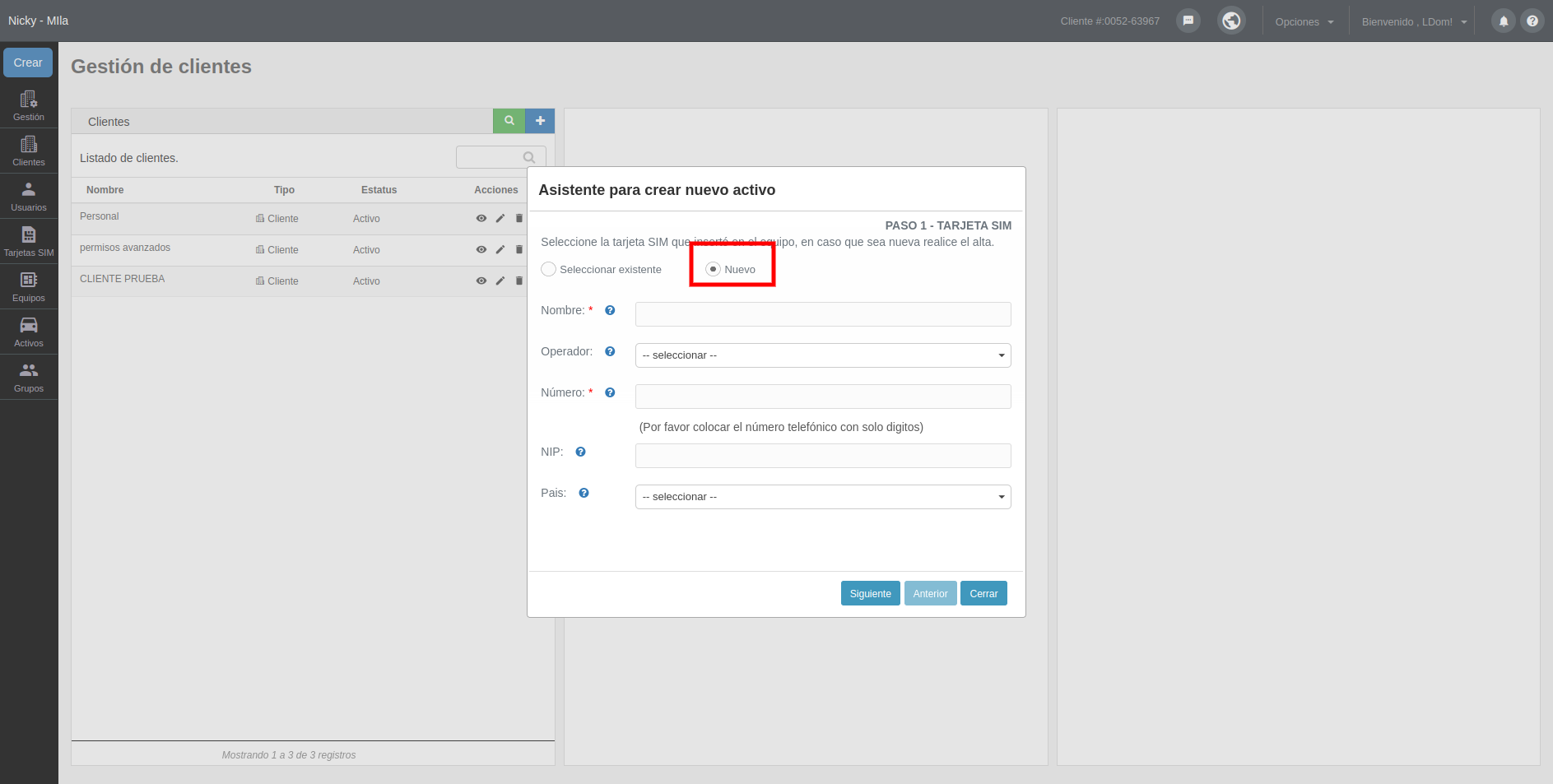
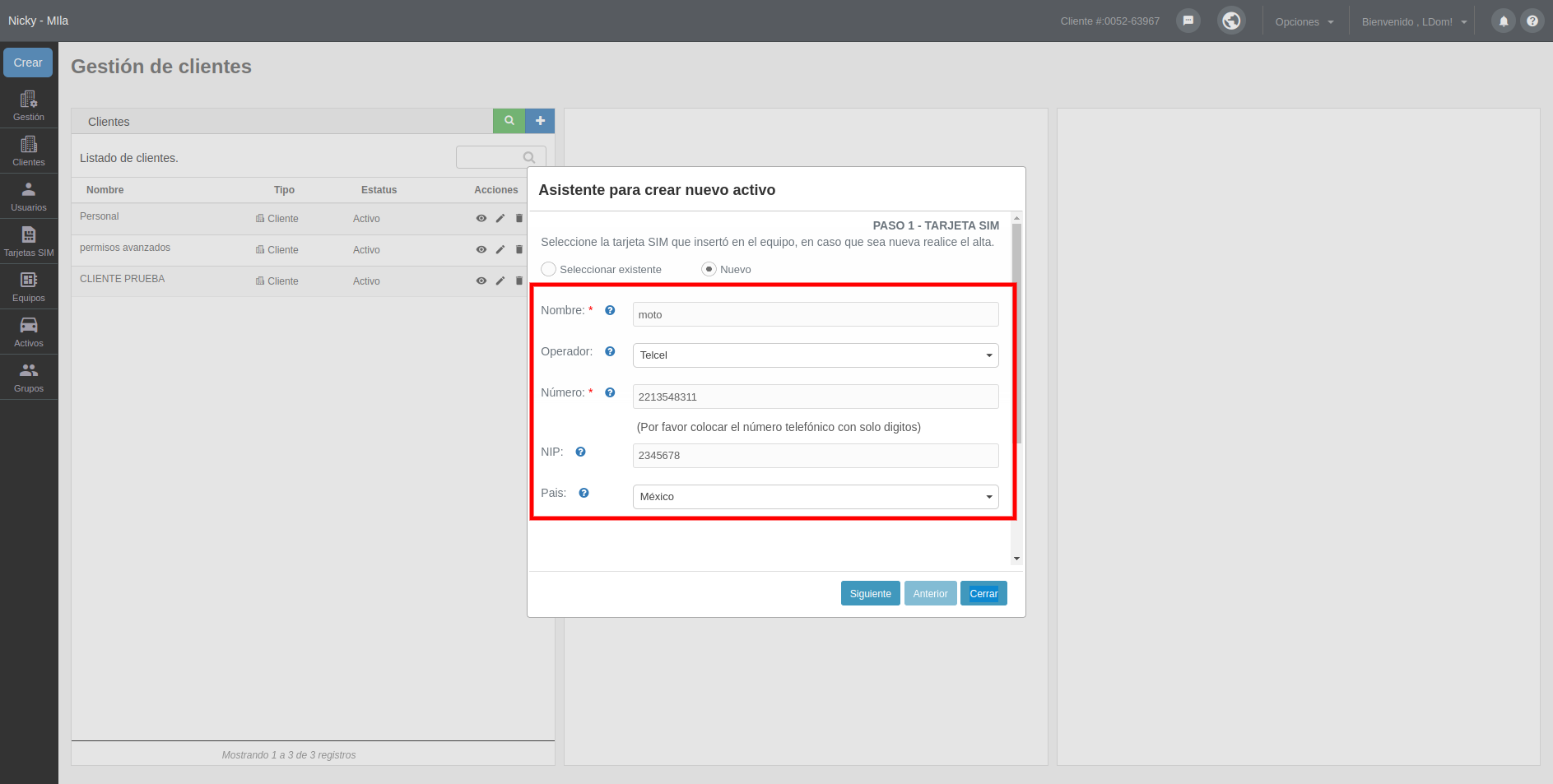
<span style="font-size: 12pt; font-family: Arial; color: #333333; background-color: transparent; font-weight: 400; font-style: italic; font-variant: normal; text-decoration: none; vertical-align: baseline; white-space: pre-wrap;">- Paso 1. TARJETA SIM,</span><span style="font-size: 12pt; font-family: Arial; color: #333333; background-color: transparent; font-weight: 400; font-style: normal; font-variant: normal; text-decoration: none; vertical-align: baseline; white-space: pre-wrap;"> seleccione la tarjeta SIM que insertó en el equipo, si no está creada marque el campo nuevo y deberá completar la información del formulario.</span>

[![crearonpartners.png](https://docs.redgps.com/uploads/images/gallery/2024-08/scaled-1680-/crearonpartners.png)](https://docs.redgps.com/uploads/images/gallery/2024-08/crearonpartners.png)

<span style="font-size: 12pt; font-family: Arial; color: #333333; background-color: transparent; font-weight: 400; font-style: italic; font-variant: normal; text-decoration: none; vertical-align: baseline; white-space: pre-wrap;">- Paso 2. EQUIPO, </span><span style="font-size: 12pt; font-family: Arial; color: #333333; background-color: transparent; font-weight: 400; font-style: normal; font-variant: normal; text-decoration: none; vertical-align: baseline; white-space: pre-wrap;">seleccione el equipo que instaló en el activo, en caso que no este creado complete el formulario del campo "nuevo" .</span>

[![crear2onparters.png](https://docs.redgps.com/uploads/images/gallery/2024-08/scaled-1680-/crear2onparters.png)](https://docs.redgps.com/uploads/images/gallery/2024-08/crear2onparters.png)

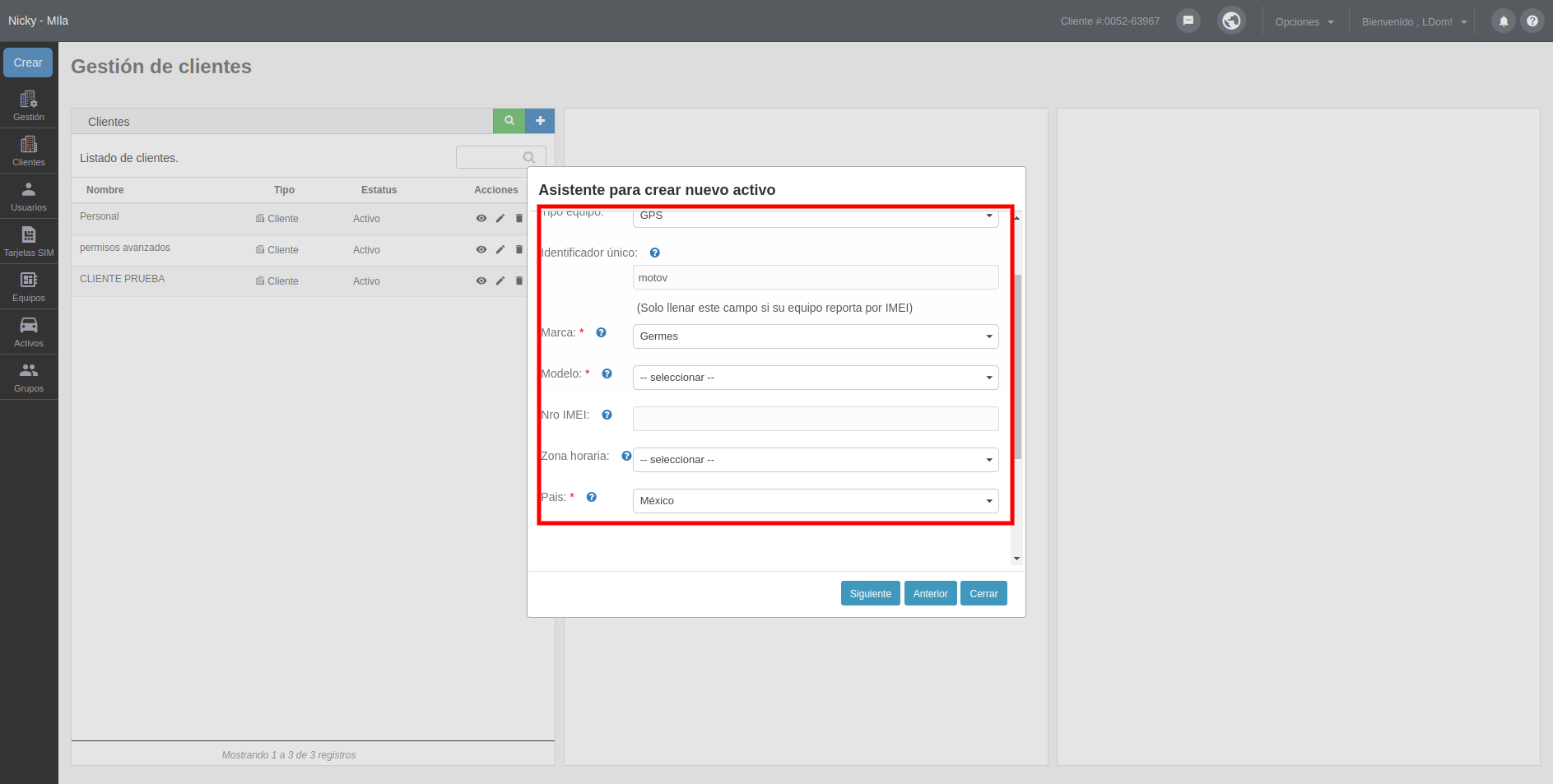
<span style="font-size: 12pt; font-family: Arial; color: #333333; background-color: transparent; font-weight: 400; font-style: italic; font-variant: normal; text-decoration: none; vertical-align: baseline; white-space: pre-wrap;">- Paso 3. ACTIVO,</span><span style="font-size: 12pt; font-family: Arial; color: #333333; background-color: transparent; font-weight: 400; font-style: normal; font-variant: normal; text-decoration: none; vertical-align: baseline; white-space: pre-wrap;"> complete el formulario con los datos del activo que desea crear.</span>

[![crear3onpartners.png](https://docs.redgps.com/uploads/images/gallery/2024-08/scaled-1680-/crear3onpartners.png)](https://docs.redgps.com/uploads/images/gallery/2024-08/crear3onpartners.png)

<span style="font-size: 12pt; font-family: Arial; color: #333333; background-color: transparent; font-weight: 400; font-style: italic; font-variant: normal; text-decoration: none; vertical-align: baseline; white-space: pre-wrap;">- Paso 4. CLIENTE,</span><span style="font-size: 12pt; font-family: Arial; color: #333333; background-color: transparent; font-weight: 400; font-style: normal; font-variant: normal; text-decoration: none; vertical-align: baseline; white-space: pre-wrap;"> seleccione el cliente al que pertenece este activo, en caso que no esté creado puede ingresar los datos del formulario en el campo "nuevo".</span>

[![crear4onpartnes.png](https://docs.redgps.com/uploads/images/gallery/2024-08/scaled-1680-/crear4onpartnes.png)](https://docs.redgps.com/uploads/images/gallery/2024-08/crear4onpartnes.png)

<span style="font-size: 12pt; font-family: Arial; color: #333333; background-color: transparent; font-weight: 400; font-style: normal; font-variant: normal; text-decoration: none; vertical-align: baseline; white-space: pre-wrap;">Una vez registrado la información correspondiente en cada paso del asistente de clic en "finalizar"para que su activo quede asociado y su cliente pueda visualizarlo.</span>

# Gestión de clientes

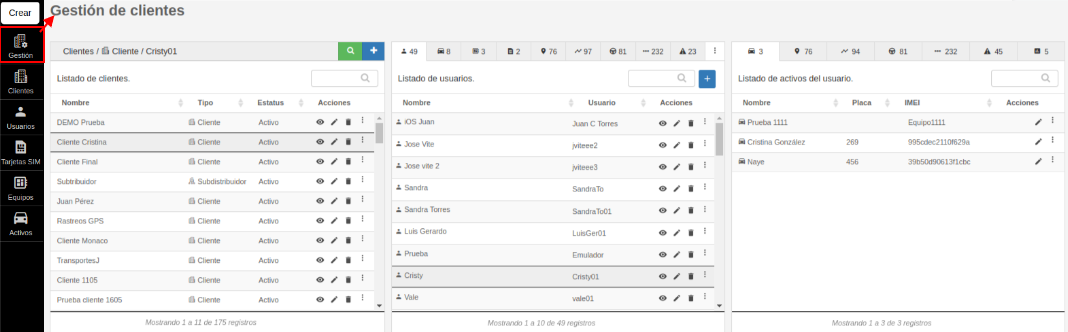
##### <span style="font-size: 12pt; font-family: Arial; color: #666666; background-color: transparent; font-weight: 400; font-style: normal; font-variant: normal; text-decoration: none; vertical-align: baseline; white-space: pre-wrap;">Este módulo permite administrar de una manera muy fácil e intuitiva toda la información de tus clientes. Cuenta con 3 apartados; clientes, elementos del cliente y permisos del usuario.</span>

[![image-1669761334253.png](https://docs.redgps.com/uploads/images/gallery/2022-11/scaled-1680-/image-1669761334253.png)](https://docs.redgps.com/uploads/images/gallery/2022-11/image-1669761334253.png)

#### <span style="font-size: 12pt; font-family: Arial; color: #666666; background-color: transparent; font-weight: bold; font-style: normal; font-variant: normal; text-decoration: none; vertical-align: baseline; white-space: pre-wrap;">Clientes</span>

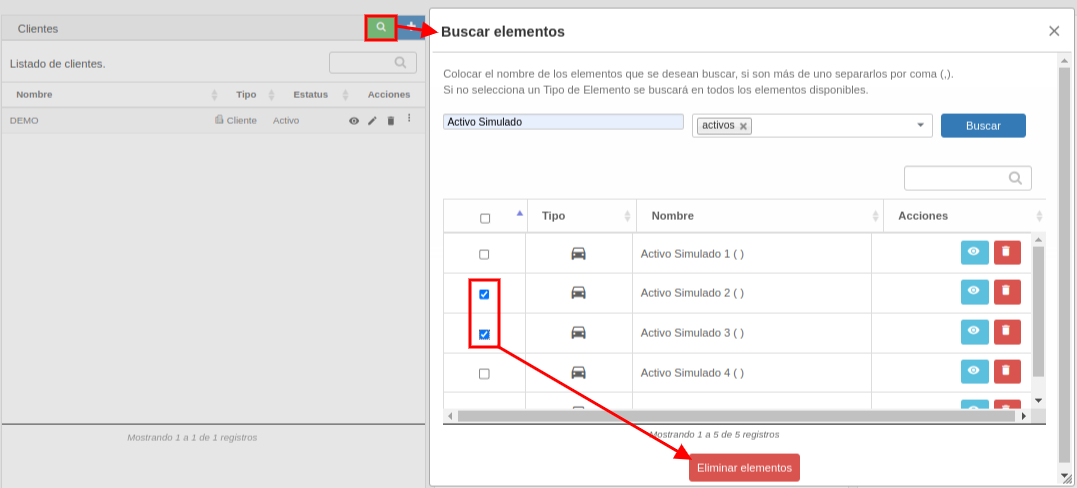
- <span style="font-size: 12pt; font-family: Arial; color: #666666; background-color: transparent; font-weight: bold; font-style: normal; font-variant: normal; text-decoration: none; vertical-align: baseline; white-space: pre-wrap;">Buscar elementos: <span style="font-size: 12pt; font-family: Arial; color: #666666; background-color: transparent; font-weight: 400; font-style: normal; font-variant: normal; text-decoration: none; vertical-align: baseline; white-space: pre-wrap;">Este botón permite realizar búsquedas de cualquier elemento de tus clientes, por ejemplo: alertas, geocercas, lugares, clientes, usuarios, Activos, equipos, sims, conductores y rutas. Además con el botón de "Visualizar" muestra dentro de qué cliente está el elemento y con el botón de "Eliminar" podemos dar de baja el elemento, o con los checks podemos hacer eliminaciones masivas.</span></span>

[![BUSCAR GESTIÓN.png](https://docs.redgps.com/uploads/images/gallery/2022-11/scaled-1680-/buscar-gestion.png)](https://docs.redgps.com/uploads/images/gallery/2022-11/buscar-gestion.png)

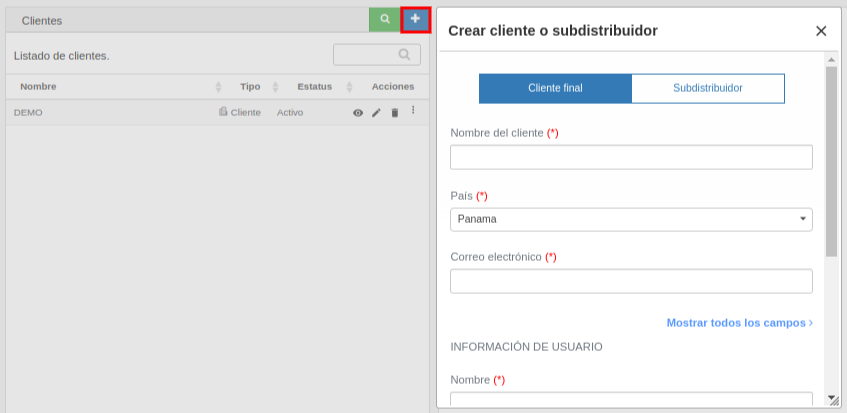
- <span style="font-size: 12pt; font-family: Arial; color: #666666; background-color: transparent; font-weight: 400; font-style: normal; font-variant: normal; text-decoration: none; vertical-align: baseline; white-space: pre-wrap;">**Crear cliente o subdistribuidor:** Este botón permite crear un nuevo registro de cliente o subdistribuidor, solo es necesario hacer clic en el botón de "+" y registrar los datos solicitados en el formulario del cliente y del primer usuario. </span><span style="font-size: 12pt; font-family: Arial; color: #666666; background-color: transparent; font-weight: 400; font-style: normal; font-variant: normal; text-decoration: none; vertical-align: baseline; white-space: pre-wrap;">Es muy importante que ingreses toda la información requerida y que selecciones el tipo de cliente necesitas crear.</span>

[![image-1669324530205.png](https://docs.redgps.com/uploads/images/gallery/2022-11/scaled-1680-/image-1669324530205.png)](https://docs.redgps.com/uploads/images/gallery/2022-11/image-1669324530205.png)

- - 
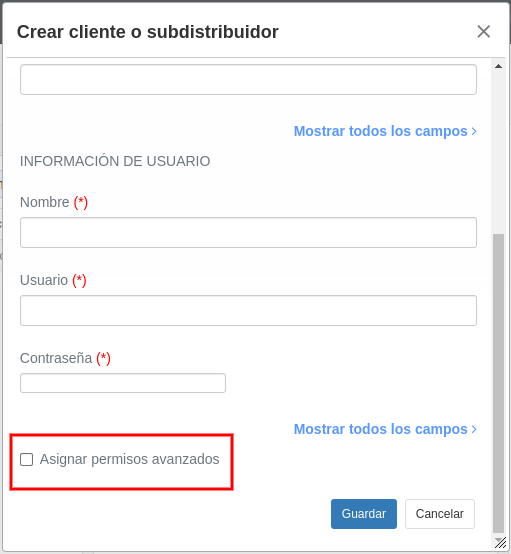
    - <span style="font-size: 12pt; font-family: Arial; color: #666666; background-color: transparent; font-weight: 400; font-style: normal; font-variant: normal; text-decoration: none; vertical-align: baseline; white-space: pre-wrap;">Un **cliente final** es una flota de Activos a quien tu empresa como distribuidor le brinda el servicio de localización satelital, por lo que tú eres el encargado de crear y gestionar sus usuarios, Activos, equipos y sims. </span><span style="font-size: 12pt; font-family: Arial; color: #666666; background-color: transparent; font-weight: 400; font-style: normal; font-variant: normal; text-decoration: none; vertical-align: baseline; white-space: pre-wrap;">En caso de que necesites que este cliente final tenga<span style="color: #3366ff;"> [permisos avanzados](https://docs.redgps.com/books/onpartners/page/permisos-avanzados)</span> para crear por usuarios o algo adicional de los permisos básicos, tienes que marcar el campo "Asignar permisos avanzados" que se encuentra al final del formulario:</span>
- [![image-1670942538152.png](https://docs.redgps.com/uploads/images/gallery/2022-12/scaled-1680-/image-1670942538152.png)](https://docs.redgps.com/uploads/images/gallery/2022-12/image-1670942538152.png)
    
    
    - <span style="font-size: 12pt; font-family: Arial; color: #666666; background-color: transparent; font-weight: 400; font-style: normal; font-variant: normal; text-decoration: none; vertical-align: baseline; white-space: pre-wrap;">Por otro lado, un **subdistribuidor** es una empresa que revende el servicio de rastreo GPS, por lo que este podrá crear clientes, usuarios, Activos, equipos y sims desde OnTracking en el <span style="color: #3366ff;">[módulo de Administración](https://docs.redgps.com/books/onpartners/page/subdistribuidores)</span></span><span style="font-size: 12pt; font-family: Arial; color: #666666; background-color: transparent; font-weight: 400; font-style: normal; font-variant: normal; text-decoration: none; vertical-align: baseline; white-space: pre-wrap;">. A este subdistribuidor se le asignarán <span style="color: #3366ff;">[permisos avanzados](https://docs.redgps.com/books/onpartners/page/permisos-avanzados) </span>automáticamente.</span>
- 

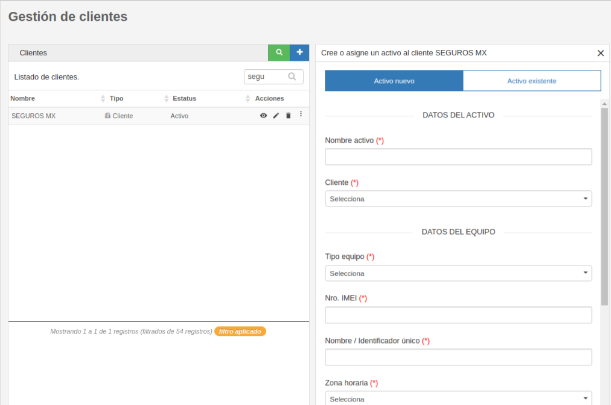
<span style="font-size: 12pt; font-family: Arial; color: #666666; background-color: transparent; font-weight: 400; font-style: normal; font-variant: normal; text-decoration: none; vertical-align: baseline; white-space: pre-wrap;">Posterior a dar de alta al cliente, la plataforma permite crear un nuevo Activos al cliente, en conjunto con su equipo y sim, en un solo formulario:</span>

[![image-1724436687943.png](https://docs.redgps.com/uploads/images/gallery/2024-08/scaled-1680-/image-1724436687943.png)](https://docs.redgps.com/uploads/images/gallery/2024-08/image-1724436687943.png)

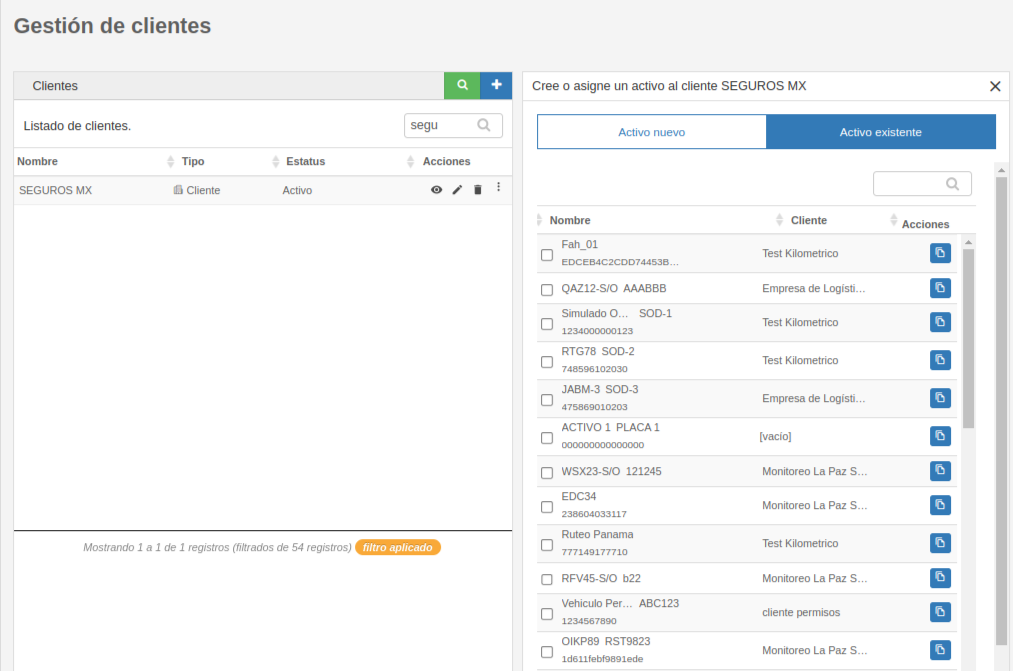
<span style="font-size: 12pt; font-family: Arial; color: #666666; background-color: transparent; font-weight: 400; font-style: normal; font-variant: normal; text-decoration: none; vertical-align: baseline; white-space: pre-wrap;">O también puedes dar permiso a ese cliente de los Activos existentes en tu cuenta, marcando la casilla:</span>

[![image-1669823642755.png](https://docs.redgps.com/uploads/images/gallery/2022-11/scaled-1680-/image-1669823642755.png)](https://docs.redgps.com/uploads/images/gallery/2022-11/image-1669823642755.png)

<span style="font-size: 12pt; font-family: Arial; color: #666666; background-color: transparent; font-weight: 400; font-style: normal; font-variant: normal; text-decoration: none; vertical-align: baseline; white-space: pre-wrap;">El botón "Duplicar este elemento" sirve para crear un Activo, equipo y sim con características similares a uno que ya está creado, la información que se copia en el formulario para su creación es únicamente la del equipo y son los campos: tipo equipo, zona horaria, país, marca y modelo.</span>

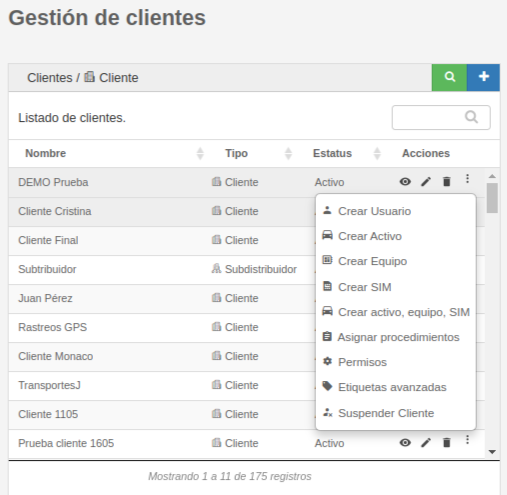
- <span style="font-size: 12pt; font-family: Arial; color: #666666; background-color: transparent; font-weight: 400; font-style: normal; font-variant: normal; text-decoration: none; vertical-align: baseline; white-space: pre-wrap;">**Listado de clientes:** En esta primer sección se listan todos tus clientes y podrás ejecutar estas acciones.</span>
    - <span style="font-size: 12pt; font-family: Arial; color: #666666; background-color: transparent; font-weight: 400; font-style: normal; font-variant: normal; text-decoration: none; vertical-align: baseline; white-space: pre-wrap;">Visualizar los **elementos por cliente**.</span>
    - <span style="font-size: 12pt; font-family: Arial; color: #666666; background-color: transparent; font-weight: 400; font-style: normal; font-variant: normal; text-decoration: none; vertical-align: baseline; white-space: pre-wrap;">**Editar** el registro del **cliente**.</span>
    - <span style="font-size: 12pt; font-family: Arial; color: #666666; background-color: transparent; font-weight: 400; font-style: normal; font-variant: normal; text-decoration: none; vertical-align: baseline; white-space: pre-wrap;">**Eliminar** el **cliente** y todos los elementos asociados a este, como por ejemplo usuarios, Activos, equipos, alertas, conductores, lugares, geocercas, mantenimientos, rutas, etc.</span>
    - **<span style="font-size: 12pt; font-family: Arial; color: #666666; background-color: transparent; font-style: normal; font-variant: normal; text-decoration: none; vertical-align: baseline; white-space: pre-wrap;">Crear</span>**<span style="font-size: 12pt; font-family: Arial; color: #666666; background-color: transparent; font-style: normal; font-variant: normal; text-decoration: none; vertical-align: baseline; white-space: pre-wrap;"> un **usuario** para el cliente.</span>
    - **<span style="font-size: 12pt; font-family: Arial; color: #666666; background-color: transparent; font-style: normal; font-variant: normal; text-decoration: none; vertical-align: baseline; white-space: pre-wrap;">Crear</span>**<span style="font-size: 12pt; font-family: Arial; color: #666666; background-color: transparent; font-style: normal; font-variant: normal; text-decoration: none; vertical-align: baseline; white-space: pre-wrap;"> un **Activo** del cliente.</span>
    - **<span style="font-size: 12pt; font-family: Arial; color: #666666; background-color: transparent; font-style: normal; font-variant: normal; text-decoration: none; vertical-align: baseline; white-space: pre-wrap;">Crear</span>**<span style="font-size: 12pt; font-family: Arial; color: #666666; background-color: transparent; font-style: normal; font-variant: normal; text-decoration: none; vertical-align: baseline; white-space: pre-wrap;"> un **equipo**.</span>
    - **<span style="font-size: 12pt; font-family: Arial; color: #666666; background-color: transparent; font-style: normal; font-variant: normal; text-decoration: none; vertical-align: baseline; white-space: pre-wrap;">Crear</span>**<span style="font-size: 12pt; font-family: Arial; color: #666666; background-color: transparent; font-style: normal; font-variant: normal; text-decoration: none; vertical-align: baseline; white-space: pre-wrap;"> una **sim**.</span>
    - <span style="font-size: 12pt; font-family: Arial; color: #666666; background-color: transparent; font-style: normal; font-variant: normal; text-decoration: none; vertical-align: baseline; white-space: pre-wrap;">O con un solo formulario podrás **crear** el **Activo** con su **equipo** y **sim**.</span>
    - <span style="font-size: 12pt; font-family: Arial; color: #666666; background-color: transparent; font-style: normal; font-variant: normal; text-decoration: none; vertical-align: baseline; white-space: pre-wrap;">**Asignar procedimientos**.</span>
    - <span style="font-size: 12pt; font-family: Arial; color: #666666; background-color: transparent; font-style: normal; font-variant: normal; text-decoration: none; vertical-align: baseline; white-space: pre-wrap;">Gestionar los **permisos** del cliente.</span>
    - <span style="font-size: 12pt; font-family: Arial; color: #666666; background-color: transparent; font-style: normal; font-variant: normal; text-decoration: none; vertical-align: baseline; white-space: pre-wrap;">Configurar las **etiquetas avanzadas** de los Activos del cliente.</span>
    - <span style="font-size: 12pt; font-family: Arial; color: #666666; background-color: transparent; font-style: normal; font-variant: normal; text-decoration: none; vertical-align: baseline; white-space: pre-wrap;">**Suspender** o reactivar al **cliente**.</span>

[![Listado de clientes.png](https://docs.redgps.com/uploads/images/gallery/2022-11/scaled-1680-/listado-de-clientes.png)](https://docs.redgps.com/uploads/images/gallery/2022-11/listado-de-clientes.png)


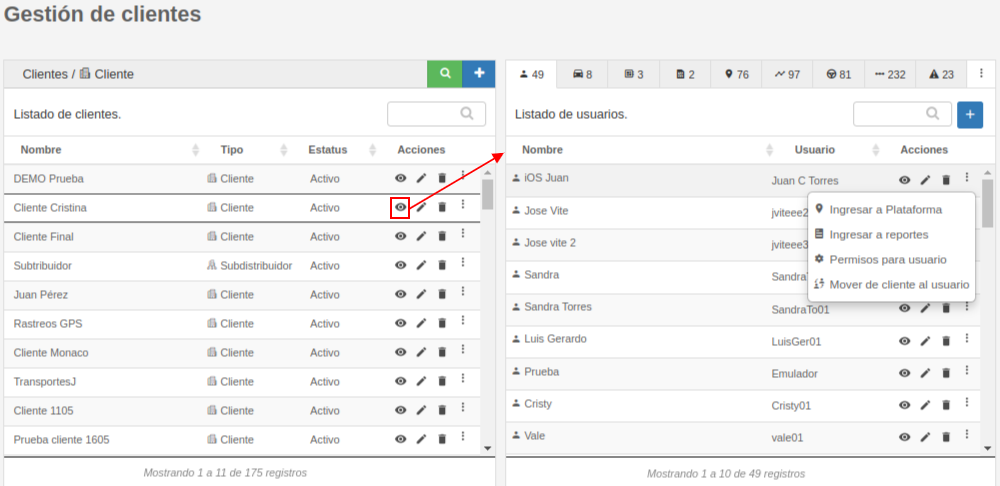
#### <span style="font-size: 12pt; font-family: Arial; color: #666666; background-color: transparent; font-weight: bold; font-style: normal; font-variant: normal; text-decoration: none; vertical-align: baseline; white-space: pre-wrap;">Elementos del cliente</span>

<span style="font-size: 12pt; font-family: Arial; color: #666666; background-color: transparent; font-weight: bold; font-style: normal; font-variant: normal; text-decoration: none; vertical-align: baseline; white-space: pre-wrap;"><span style="font-size: 12pt; font-family: Arial; color: #666666; background-color: transparent; font-weight: 400; font-style: normal; font-variant: normal; text-decoration: none; vertical-align: baseline; white-space: pre-wrap;">Se muestran algunos elementos del cliente y distintas acciones en cada uno de ellos.</span></span>

[![image-1669755008437.png](https://docs.redgps.com/uploads/images/gallery/2022-11/scaled-1680-/image-1669755008437.png)](https://docs.redgps.com/uploads/images/gallery/2022-11/image-1669755008437.png)

- <span style="font-size: 12pt; font-family: Arial; color: #666666; background-color: transparent; font-weight: bold; font-style: normal; font-variant: normal; text-decoration: none; vertical-align: baseline; white-space: pre-wrap;">Usuarios. <span style="font-size: 12pt; font-family: Arial; color: #666666; background-color: transparent; font-weight: 400; font-style: normal; font-variant: normal; text-decoration: none; vertical-align: baseline; white-space: pre-wrap;">Se listan todos los nombres y usuarios del cliente, podrás:</span></span>
    - <span style="font-size: 12pt; font-family: Arial; color: #666666; background-color: transparent; font-style: normal; font-variant: normal; text-decoration: none; vertical-align: baseline; white-space: pre-wrap;"><span style="font-size: 12pt; font-family: Arial; color: #666666; background-color: transparent; font-weight: 400; font-style: normal; font-variant: normal; text-decoration: none; vertical-align: baseline; white-space: pre-wrap;">Crear **nuevo usuario**.</span></span>
    - <span style="font-size: 12pt; font-family: Arial; color: #666666; background-color: transparent; font-style: normal; font-variant: normal; text-decoration: none; vertical-align: baseline; white-space: pre-wrap;"><span style="font-size: 12pt; font-family: Arial; color: #666666; background-color: transparent; font-weight: 400; font-style: normal; font-variant: normal; text-decoration: none; vertical-align: baseline; white-space: pre-wrap;">**Ver elementos del usuario**.</span></span>
    - <span style="font-size: 12pt; font-family: Arial; color: #666666; background-color: transparent; font-style: normal; font-variant: normal; text-decoration: none; vertical-align: baseline; white-space: pre-wrap;"><span style="font-size: 12pt; font-family: Arial; color: #666666; background-color: transparent; font-weight: 400; font-style: normal; font-variant: normal; text-decoration: none; vertical-align: baseline; white-space: pre-wrap;">**Editar usuario**.</span></span>
    - **<span style="font-size: 12pt; font-family: Arial; color: #666666; background-color: transparent; font-style: normal; font-variant: normal; text-decoration: none; vertical-align: baseline; white-space: pre-wrap;"><span style="font-size: 12pt; font-family: Arial; color: #666666; background-color: transparent; font-style: normal; font-variant: normal; text-decoration: none; vertical-align: baseline; white-space: pre-wrap;">Eliminar</span></span>**<span style="font-size: 12pt; font-family: Arial; color: #666666; background-color: transparent; font-style: normal; font-variant: normal; text-decoration: none; vertical-align: baseline; white-space: pre-wrap;"><span style="font-size: 12pt; font-family: Arial; color: #666666; background-color: transparent; font-style: normal; font-variant: normal; text-decoration: none; vertical-align: baseline; white-space: pre-wrap;"> **usuario**.</span></span>
    - **<span style="font-size: 12pt; font-family: Arial; color: #666666; background-color: transparent; font-style: normal; font-variant: normal; text-decoration: none; vertical-align: baseline; white-space: pre-wrap;"><span style="font-size: 12pt; font-family: Arial; color: #666666; background-color: transparent; font-style: normal; font-variant: normal; text-decoration: none; vertical-align: baseline; white-space: pre-wrap;">Ingresar a </span></span>**<span style="font-size: 12pt; font-family: Arial; color: #666666; background-color: transparent; font-style: normal; font-variant: normal; text-decoration: none; vertical-align: baseline; white-space: pre-wrap;"><span style="font-size: 12pt; font-family: Arial; color: #666666; background-color: transparent; font-style: normal; font-variant: normal; text-decoration: none; vertical-align: baseline; white-space: pre-wrap;">la</span></span><span style="font-size: 12pt; font-family: Arial; color: #666666; background-color: transparent; font-style: normal; font-variant: normal; text-decoration: none; vertical-align: baseline; white-space: pre-wrap;"><span style="font-size: 12pt; font-family: Arial; color: #666666; background-color: transparent; font-style: normal; font-variant: normal; text-decoration: none; vertical-align: baseline; white-space: pre-wrap;"> **plataforma** OnTracking como si fueramos ese usuario.</span></span>
    - **<span style="font-size: 12pt; font-family: Arial; color: #666666; background-color: transparent; font-style: normal; font-variant: normal; text-decoration: none; vertical-align: baseline; white-space: pre-wrap;"><span style="font-size: 12pt; font-family: Arial; color: #666666; background-color: transparent; font-style: normal; font-variant: normal; text-decoration: none; vertical-align: baseline; white-space: pre-wrap;">Ingresar a </span></span>**<span style="font-size: 12pt; font-family: Arial; color: #666666; background-color: transparent; font-style: normal; font-variant: normal; text-decoration: none; vertical-align: baseline; white-space: pre-wrap;"><span style="font-size: 12pt; font-family: Arial; color: #666666; background-color: transparent; font-style: normal; font-variant: normal; text-decoration: none; vertical-align: baseline; white-space: pre-wrap;">la</span></span><span style="font-size: 12pt; font-family: Arial; color: #666666; background-color: transparent; font-style: normal; font-variant: normal; text-decoration: none; vertical-align: baseline; white-space: pre-wrap;"><span style="font-size: 12pt; font-family: Arial; color: #666666; background-color: transparent; font-style: normal; font-variant: normal; text-decoration: none; vertical-align: baseline; white-space: pre-wrap;"> plataforma **OnReports** como si fueramos ese usuario.</span></span>
    - <span style="font-size: 12pt; font-family: Arial; color: #666666; background-color: transparent; font-style: normal; font-variant: normal; text-decoration: none; vertical-align: baseline; white-space: pre-wrap;"><span style="font-size: 12pt; font-family: Arial; color: #666666; background-color: transparent; font-style: normal; font-variant: normal; text-decoration: none; vertical-align: baseline; white-space: pre-wrap;">Gestionar los **permisos para** el **usuario**.</span></span>
    - <span style="font-size: 12pt; font-family: Arial; color: #666666; background-color: transparent; font-style: normal; font-variant: normal; text-decoration: none; vertical-align: baseline; white-space: pre-wrap;"><span style="font-size: 12pt; font-family: Arial; color: #666666; background-color: transparent; font-style: normal; font-variant: normal; text-decoration: none; vertical-align: baseline; white-space: pre-wrap;">**Mover de cliente al usuario**.</span></span>

- **<span style="font-size: 12pt; font-family: Arial; color: #666666; background-color: transparent; font-style: normal; font-variant: normal; text-decoration: none; vertical-align: baseline; white-space: pre-wrap;"><span style="font-size: 12pt; font-family: Arial; color: #666666; background-color: transparent; font-style: normal; font-variant: normal; text-decoration: none; vertical-align: baseline; white-space: pre-wrap;">Activos. </span></span>**<span style="font-size: 12pt; font-family: Arial; color: #666666; background-color: transparent; font-style: normal; font-variant: normal; text-decoration: none; vertical-align: baseline; white-space: pre-wrap;"><span style="font-size: 12pt; font-family: Arial; color: #666666; background-color: transparent; font-style: normal; font-variant: normal; text-decoration: none; vertical-align: baseline; white-space: pre-wrap;">Se muestran los Activos a los que tiene acceso el cliente, en conjunto de la placa e IMEI, podrás:</span></span>
    - **<span style="font-size: 12pt; font-family: Arial; color: #666666; background-color: transparent; font-style: normal; font-variant: normal; text-decoration: none; vertical-align: baseline; white-space: pre-wrap;"><span style="font-size: 12pt; font-family: Arial; color: #666666; background-color: transparent; font-style: normal; font-variant: normal; text-decoration: none; vertical-align: baseline; white-space: pre-wrap;">Editar</span></span>**<span style="font-size: 12pt; font-family: Arial; color: #666666; background-color: transparent; font-style: normal; font-variant: normal; text-decoration: none; vertical-align: baseline; white-space: pre-wrap;"><span style="font-size: 12pt; font-family: Arial; color: #666666; background-color: transparent; font-style: normal; font-variant: normal; text-decoration: none; vertical-align: baseline; white-space: pre-wrap;"> el Activo.</span></span>
    - **<span style="font-size: 12pt; font-family: Arial; color: #666666; background-color: transparent; font-style: normal; font-variant: normal; text-decoration: none; vertical-align: baseline; white-space: pre-wrap;"><span style="font-size: 12pt; font-family: Arial; color: #666666; background-color: transparent; font-style: normal; font-variant: normal; text-decoration: none; vertical-align: baseline; white-space: pre-wrap;">Quitar</span></span>**<span style="font-size: 12pt; font-family: Arial; color: #666666; background-color: transparent; font-style: normal; font-variant: normal; text-decoration: none; vertical-align: baseline; white-space: pre-wrap;"><span style="font-size: 12pt; font-family: Arial; color: #666666; background-color: transparent; font-style: normal; font-variant: normal; text-decoration: none; vertical-align: baseline; white-space: pre-wrap;"> el **permiso** al cliente del Activo.</span></span>
    - <span style="font-size: 12pt; font-family: Arial; color: #666666; background-color: transparent; font-style: normal; font-variant: normal; text-decoration: none; vertical-align: baseline; white-space: pre-wrap;"><span style="font-size: 12pt; font-family: Arial; color: #666666; background-color: transparent; font-style: normal; font-variant: normal; text-decoration: none; vertical-align: baseline; white-space: pre-wrap;">Con un solo botón **eliminar** el **Activo, equipo y sim**.</span></span>
    - **<span style="font-size: 12pt; font-family: Arial; color: #666666; background-color: transparent; font-style: normal; font-variant: normal; text-decoration: none; vertical-align: baseline; white-space: pre-wrap;"><span style="font-size: 12pt; font-family: Arial; color: #666666; background-color: transparent; font-style: normal; font-variant: normal; text-decoration: none; vertical-align: baseline; white-space: pre-wrap;">Reemplazar</span></span>**<span style="font-size: 12pt; font-family: Arial; color: #666666; background-color: transparent; font-style: normal; font-variant: normal; text-decoration: none; vertical-align: baseline; white-space: pre-wrap;"><span style="font-size: 12pt; font-family: Arial; color: #666666; background-color: transparent; font-style: normal; font-variant: normal; text-decoration: none; vertical-align: baseline; white-space: pre-wrap;"> el **equipo** que está asignado al Activo.</span></span>
    - **<span style="font-size: 12pt; font-family: Arial; color: #666666; background-color: transparent; font-style: normal; font-variant: normal; text-decoration: none; vertical-align: baseline; white-space: pre-wrap;"><span style="font-size: 12pt; font-family: Arial; color: #666666; background-color: transparent; font-style: normal; font-variant: normal; text-decoration: none; vertical-align: baseline; white-space: pre-wrap;">Asignar</span></span><span style="font-size: 12pt; font-family: Arial; color: #666666; background-color: transparent; font-style: normal; font-variant: normal; text-decoration: none; vertical-align: baseline; white-space: pre-wrap;"><span style="font-size: 12pt; font-family: Arial; color: #666666; background-color: transparent; font-style: normal; font-variant: normal; text-decoration: none; vertical-align: baseline; white-space: pre-wrap;"> procedimientos</span></span>**<span style="font-size: 12pt; font-family: Arial; color: #666666; background-color: transparent; font-style: normal; font-variant: normal; text-decoration: none; vertical-align: baseline; white-space: pre-wrap;"><span style="font-size: 12pt; font-family: Arial; color: #666666; background-color: transparent; font-style: normal; font-variant: normal; text-decoration: none; vertical-align: baseline; white-space: pre-wrap;">.</span></span>
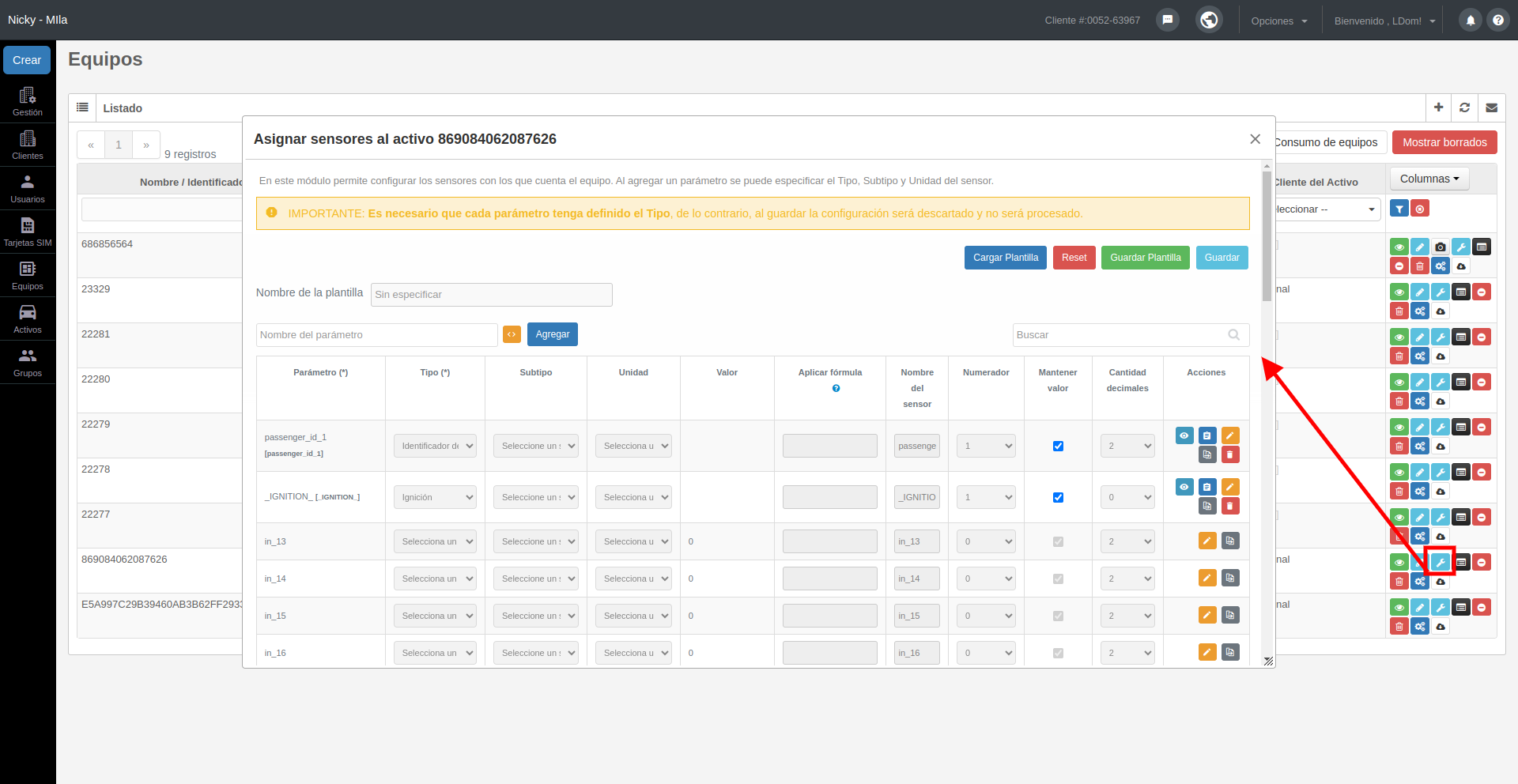
    - **<span style="font-size: 12pt; font-family: Arial; color: #666666; background-color: transparent; font-style: normal; font-variant: normal; text-decoration: none; vertical-align: baseline; white-space: pre-wrap;"><span style="font-size: 12pt; font-family: Arial; color: #666666; background-color: transparent; font-style: normal; font-variant: normal; text-decoration: none; vertical-align: baseline; white-space: pre-wrap;">Asignar</span></span>**<span style="font-size: 12pt; font-family: Arial; color: #666666; background-color: transparent; font-style: normal; font-variant: normal; text-decoration: none; vertical-align: baseline; white-space: pre-wrap;"><span style="font-size: 12pt; font-family: Arial; color: #666666; background-color: transparent; font-style: normal; font-variant: normal; text-decoration: none; vertical-align: baseline; white-space: pre-wrap;"> **sensores**.</span></span>
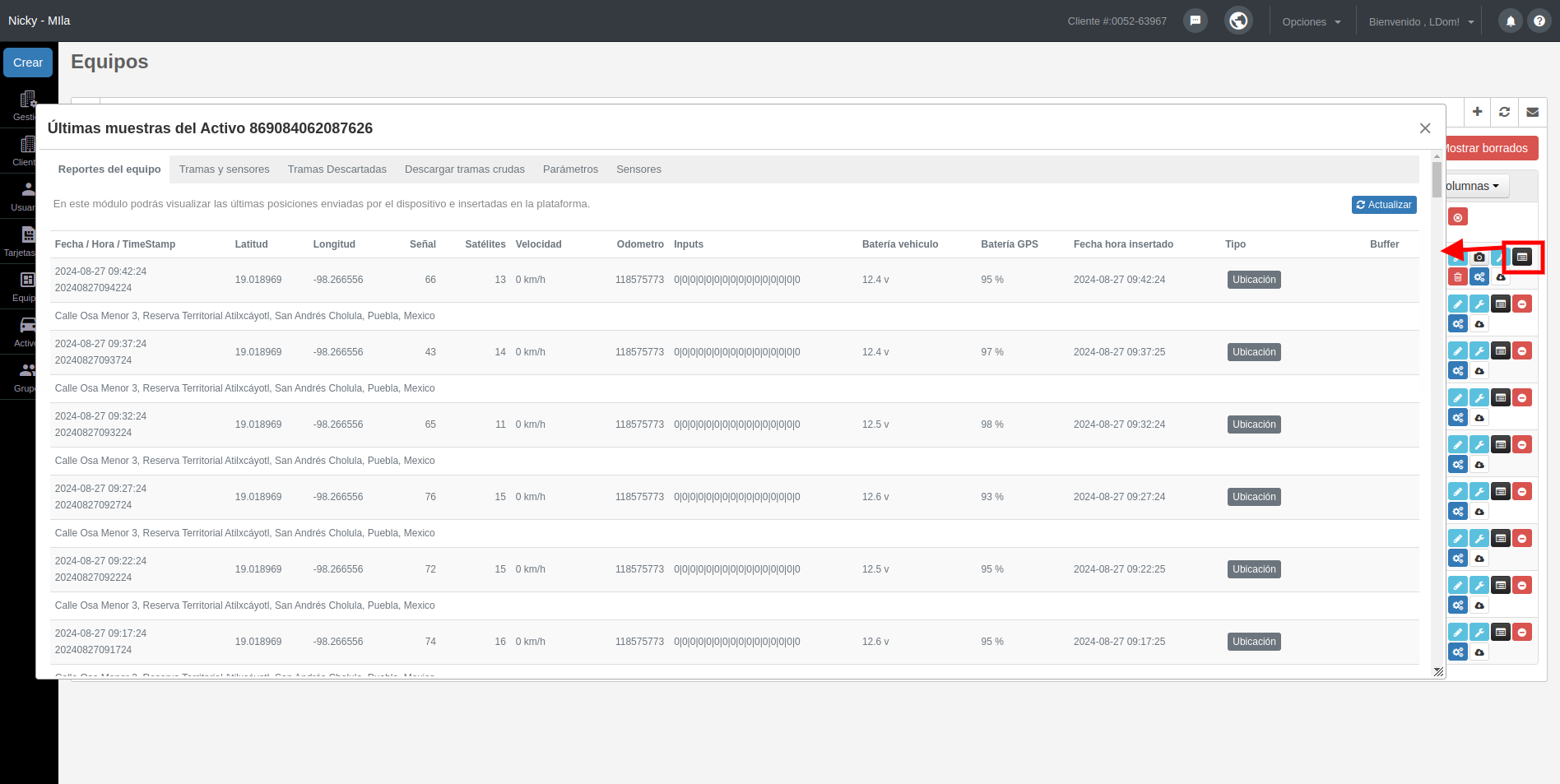
    - <span style="font-size: 12pt; font-family: Arial; color: #666666; background-color: transparent; font-style: normal; font-variant: normal; text-decoration: none; vertical-align: baseline; white-space: pre-wrap;"><span style="font-size: 12pt; font-family: Arial; color: #666666; background-color: transparent; font-style: normal; font-variant: normal; text-decoration: none; vertical-align: baseline; white-space: pre-wrap;">Visualizar las **últimas muestras**.</span></span>
    - **<span style="font-size: 12pt; font-family: Arial; color: #666666; background-color: transparent; font-style: normal; font-variant: normal; text-decoration: none; vertical-align: baseline; white-space: pre-wrap;"><span style="font-size: 12pt; font-family: Arial; color: #666666; background-color: transparent; font-style: normal; font-variant: normal; text-decoration: none; vertical-align: baseline; white-space: pre-wrap;">Ajustar</span></span>**<span style="font-size: 12pt; font-family: Arial; color: #666666; background-color: transparent; font-style: normal; font-variant: normal; text-decoration: none; vertical-align: baseline; white-space: pre-wrap;"><span style="font-size: 12pt; font-family: Arial; color: #666666; background-color: transparent; font-style: normal; font-variant: normal; text-decoration: none; vertical-align: baseline; white-space: pre-wrap;"> el **odómetro**.</span></span>
    - <span style="font-size: 12pt; font-family: Arial; color: #666666; background-color: transparent; font-style: normal; font-variant: normal; text-decoration: none; vertical-align: baseline; white-space: pre-wrap;"><span style="font-size: 12pt; font-family: Arial; color: #666666; background-color: transparent; font-style: normal; font-variant: normal; text-decoration: none; vertical-align: baseline; white-space: pre-wrap;">Configurar la **tabla de combustible**.</span></span>
    - **<span style="font-size: 12pt; font-family: Arial; color: #666666; background-color: transparent; font-style: normal; font-variant: normal; text-decoration: none; vertical-align: baseline; white-space: pre-wrap;"><span style="font-size: 12pt; font-family: Arial; color: #666666; background-color: transparent; font-style: normal; font-variant: normal; text-decoration: none; vertical-align: baseline; white-space: pre-wrap;">Cambiar</span></span>**<span style="font-size: 12pt; font-family: Arial; color: #666666; background-color: transparent; font-style: normal; font-variant: normal; text-decoration: none; vertical-align: baseline; white-space: pre-wrap;"><span style="font-size: 12pt; font-family: Arial; color: #666666; background-color: transparent; font-style: normal; font-variant: normal; text-decoration: none; vertical-align: baseline; white-space: pre-wrap;"> al **Activo** de **cliente**.</span></span>
    - <span style="font-size: 12pt; font-family: Arial; color: #666666; background-color: transparent; font-style: normal; font-variant: normal; text-decoration: none; vertical-align: baseline; white-space: pre-wrap;"><span style="font-size: 12pt; font-family: Arial; color: #666666; background-color: transparent; font-style: normal; font-variant: normal; text-decoration: none; vertical-align: baseline; white-space: pre-wrap;">**Editar** el **equipo del Activo.**</span></span>
    - <span style="font-size: 12pt; font-family: Arial; color: #666666; background-color: transparent; font-style: normal; font-variant: normal; text-decoration: none; vertical-align: baseline; white-space: pre-wrap;"><span style="font-size: 12pt; font-family: Arial; color: #666666; background-color: transparent; font-style: normal; font-variant: normal; text-decoration: none; vertical-align: baseline; white-space: pre-wrap;">**Editar** la **sim del Activo.**</span></span>

- **<span style="font-size: 12pt; font-family: Arial; color: #666666; background-color: transparent; font-style: normal; font-variant: normal; text-decoration: none; vertical-align: baseline; white-space: pre-wrap;">Equipo. </span>**<span style="font-size: 12pt; font-family: Arial; color: #666666; background-color: transparent; font-style: normal; font-variant: normal; text-decoration: none; vertical-align: baseline; white-space: pre-wrap;">Se muestran los nombres de los equipos, en conjunto la marca y modelo, podrás **editar** y **eliminar**.</span>
- **<span style="font-size: 12pt; font-family: Arial; color: #666666; background-color: transparent; font-style: normal; font-variant: normal; text-decoration: none; vertical-align: baseline; white-space: pre-wrap;">Sims.</span>**<span style="font-size: 12pt; font-family: Arial; color: #666666; background-color: transparent; font-style: normal; font-variant: normal; text-decoration: none; vertical-align: baseline; white-space: pre-wrap;"> Se listan los nombres y números telefónicos de las sims, podrás **editar** y **eliminar**.</span>
- <span style="font-size: 12pt; font-family: Arial; color: #666666; background-color: transparent; font-style: normal; font-variant: normal; text-decoration: none; vertical-align: baseline; white-space: pre-wrap;">También se muestran los **lugares**, **geocercas** y **conductores** con la opción de **editar** y **eliminar**.</span>
- **<span style="font-size: 12pt; font-family: Arial; color: #666666; background-color: transparent; font-style: normal; font-variant: normal; text-decoration: none; vertical-align: baseline; white-space: pre-wrap;">Rutas.</span>**<span style="font-size: 12pt; font-family: Arial; color: #666666; background-color: transparent; font-style: normal; font-variant: normal; text-decoration: none; vertical-align: baseline; white-space: pre-wrap;"> Se listan los nombres de las rutas y la plataforma a la que pertenece la ruta, podrás **editar** y **eliminar**.</span>
- <span style="font-size: 12pt; font-family: Arial; color: #666666; background-color: transparent; font-style: normal; font-variant: normal; text-decoration: none; vertical-align: baseline; white-space: pre-wrap;">Por último se listan las **alertas** con sus</span><span style="font-size: 12pt; font-family: Arial; color: #666666; background-color: transparent; font-style: normal; font-variant: normal; text-decoration: none; vertical-align: baseline; white-space: pre-wrap;"> nombres y el tipo de alerta, podrás **editar** y **eliminar**.</span>

#### <span style="font-size: 12pt; font-family: Arial; color: #666666; background-color: transparent; font-weight: bold; font-style: normal; font-variant: normal; text-decoration: none; vertical-align: baseline; white-space: pre-wrap;">Elementos del usuario</span>

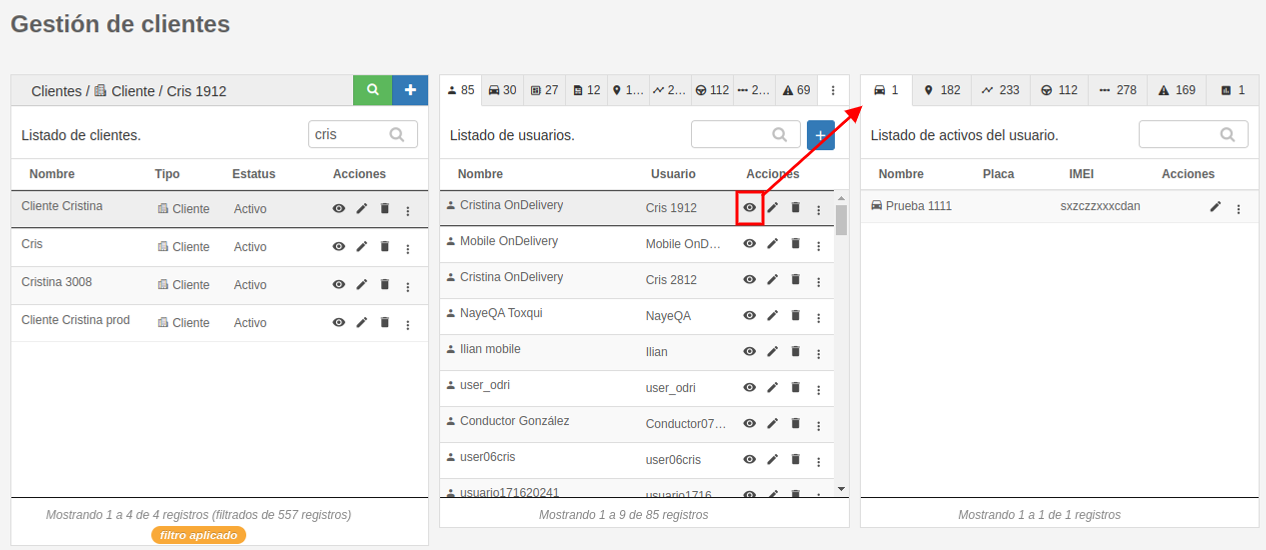
<span style="font-size: 12pt; font-family: Arial; color: #666666; background-color: transparent; font-weight: bold; font-style: normal; font-variant: normal; text-decoration: none; vertical-align: baseline; white-space: pre-wrap;"><span style="font-size: 12pt; font-family: Arial; color: #666666; background-color: transparent; font-weight: 400; font-style: normal; font-variant: normal; text-decoration: none; vertical-align: baseline; white-space: pre-wrap;">Al hacer clic en "Ver elementos del usuario" en la segunda sección, se muestran algunos elementos del usuario, como los Activos a los que tiene permiso, lugares, geocercas, conductores, rutas, alertas y los módulos que están asignados al usuario, con la posibilidad de agregar o quitar permisos de las plataformas y módulos en el usuario.</span></span>

[![image-1724436933575.png](https://docs.redgps.com/uploads/images/gallery/2024-08/scaled-1680-/image-1724436933575.png)](https://docs.redgps.com/uploads/images/gallery/2024-08/image-1724436933575.png)

# Clientes

En este módulo puedes administrar la información de tus clientes y definir qué podrán gestionar dentro de su propia plataforma.

Para crear un nuevo cliente, haz clic en el botón “+” y completa el formulario con los datos requeridos. Es importante que ingreses toda la información solicitada. A continuación, te explicamos algunos campos clave para facilitar el registro.

- Nombre: Nombre del cliente (empresa) que se registrará. Ej: Empresa Privada. Este campo es obligatorio
- Razón social: La razón social representa jurídicamente el nombre por el que se conoce una empresa.
- Alerta sonora, en caso de que requiera que una alarma sonora suene en la plataforma cliente, siempre que se genere una alerta, seleccione el campo “Si”.
- Repetir alerta sonora, está función se usa para que la alerta sonora se repita siempre y cuando no cierre la ventana
- Status, está función es para suspender a su cliente, si suspende a su cliente, el sistema denegará el acceso a todos los usuarios del cliente a la plataforma, los activos seguirán reportando. Si desea dar de baja completamente al cliente, deberá eliminarlo.
- Motivo suspendido, campo para escribir la razón por el cual se suspende al cliente
- Correo para alertas, ingrese el o los correos electrónicos de las personas autorizadas de su cliente para recibir notificaciones de sus alertas generadas por los activos, si coloca más de uno debe separarlos por comas sin espacios.
- Filtro búsqueda, está opción es utilizada para especificar a detalle el filtro que desea realizar en la plataforma cliente cuando de clic en el icono de filtrar.
- Recibir alertas de cliente, usted podrá recibir las notificaciones de las alertas generadas por los activos de su cliente, marque “No” si desea que solo se notifiquen sus propias alertas, de lo contrario marque “Si” para que le notifiquen las alertas de sus clientes.
- Tiempo actualización, en este campo puede especificar el tiempo de actualización del mapa de su cliente, por default se tienen 30 segundos configurados.
- Apertura y cierre remoto, seleccione "si", para que su cliente cuente con este tipo de alerta, esto solo funciona si su activo y equipo gps cuenta con el sensor de apertura y cierre de puerta.
- Límite activos, en este campo puede especificar el límite de activos que su cliente puede activar, si lo deja en el valor cero, su cliente podrá tener activos ilimitados.
- Editar activo, en esta opción puede permitir o denegar a su cliente el permiso para editar la información de sus activos.
- Label activos, está opción le permite elegir si la etiqueta que visualiza de sus activos es con la información de la placa de su activo, nombre de su activo, número económico ó nombre de su equipo gps.
- - - -

###### ![](https://lh3.googleusercontent.com/JRatqjtH6XrFHHQ_5OEgGyD1vYD56SOTwL_qHsrAZ_aIfcotIycHA8Nk1-dxbRjF8VYUBKB6lmM2jQiUhABH0QRQpcxYX3uR_mbCFykmMwwlElADM5lq62Ej_YUrPsradseB3Sk9)

###### Acciones

###### ![](https://lh5.googleusercontent.com/01mm0JXSu-Jfz7TJpjhExZc1lH178tPZ7Or9K3rwdDB5vfg5liRHWQvOHa-Dzc3T7moupvu3gN5e1FtPNJ7wWvHLqzBPj_bBxnAm-U1ltDAZt7QIWJDWooFox1D3PW2POhTX3ZbV "permisos")- Permisos. 

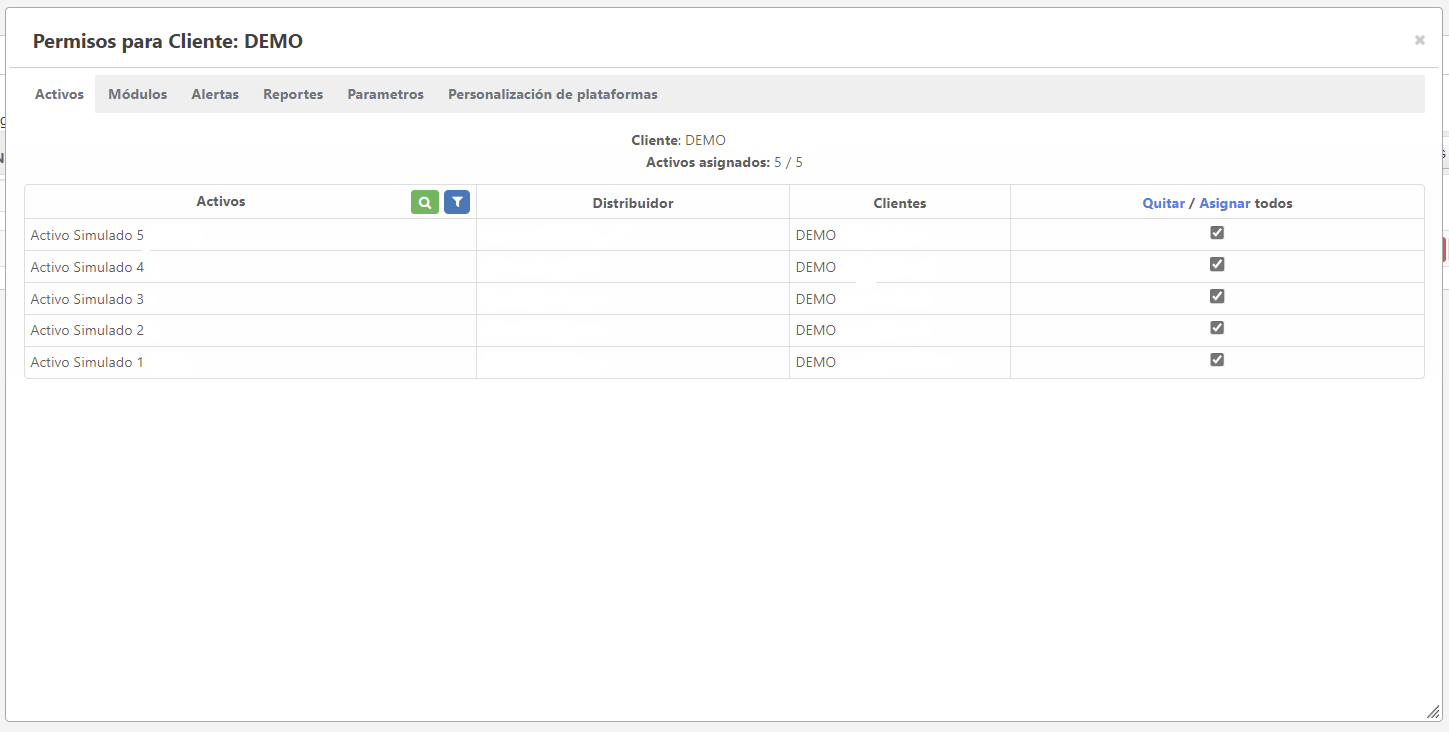
###### Con está herramienta podrá asignar los activos, módulos, alertas y reportes que su cliente/usuario tendrá acceso. Para agilizar la asignación de permisos se cuenta con las siguiente herramientas:

1. 1. Buscar: campo de búsqueda rápida, que al ingresar las primeras letras se encontrará el dato requerido,
    2. Filtrar por: seleccione el filtro requerido, si desea ver todos los registros, los registros asignados a este cliente o los registros sin asignar;
    3. Quitar/asignar todos, con esta opción podrá asignar o quitar todos los registros a su cliente.
![](https://lh5.googleusercontent.com/VxTeDfTzeksAOmsXIsrsd2LWJRENLy9WowrCXV7DBWVk5oJDAM6-hj-g8lemKDaZFptFkmrKNvt_ISr9zcyG1qpucSCBdcpeb279r9bF_fl3ho97BN-ZFamThdUN0WFNLtjCk1lR)

###### ![](https://lh3.googleusercontent.com/L7v0_jfeB-oLcBItNKz3eL6ef__qRzhzNa4iL4kPAmwLv1ksH_HBevnHx7NotzlIwY32xGnGtl0-ux2sC8WoCaIeEYzqrCCtnicEy_4SBivFWYeAAfREcVue0Tjioifo87yvjCZK)- Visualizar cliente

Con esta opción podrá visualizar los datos cargados del cliente.

###### ![](https://lh5.googleusercontent.com/cIcvgw1x0Rt1jfLFyHisEwyu1Nnes7GU2ZPO3oV3-4pCsX0xiE5zIhULbAXd9DZxk1s-zboyhZ40HYpJThrQfsHMZu2_mP3ODzhaOqbRmA8HaJFQijhq2ztuKbA1FIYqrL-HjVkW)- Editar

Con esta opción podrá editar los datos del cliente.

###### ![](https://lh4.googleusercontent.com/XAnwl_THRSi9GY9_EI6kkism8tT222fApaQ5iuVLIW8re1fgVWYFbaUuQ859FyUme9XjRkIkNUiZVx-btUOfUL18xXqYjO6EVd7imRbsLO00rFo0zVtHsxzjI0puz3PwcBXDcdB-)- Eliminar

Con esta opción podrá eliminar el cliente. Recuerde que en la plataforma nunca se elimina definitivamente ningún objeto siempre lo podrá recuperar desde “Mostrar borrados”.

![](https://lh4.googleusercontent.com/rGBqULxoBHKGmk1rxHrAkM5JjuLEZpt1rINk-nodK-qJFNU1g4yGg0csE1sIQPZsd0HdCMvbyC7s6fzr0lArPG8hcFKklHRqxX2wB0q2elH_PeyP5_tfeEJq1LRvx78n2mGCYylP)

###### ![](https://lh5.googleusercontent.com/-Sv7KAPtFtZyP5FPgrBux1zG-5CzqLx_RFD44edxBrKILC604ymrFnyfSHL0XTjgOa7RUaGWw22KIOjz-fDawuX9waBhoTRbDOT30bw-PIKAyhvFblPZi9gSgN1DS8-pgnN4L2Qw)- Asignar procedimientos

Desde esta opción usted podrá asignarle al cliente los procedimientos que haya generado previamente desde “Opciones/Procedimientos”.

###### ![](https://lh3.googleusercontent.com/BCXgqhnCJhF8_QKIdjjCdoJPs8oWF0CJp1K1ERBHIr0PFwchXDzkaK34j7s4bjYUZrX5CnKcfpD5sbi9Q-hmaYIpYfYGvt4hxuxpytTBGckr36RgsvMNctVfUYojBgpAU_A7jDb0)- Etiquetas avanzadas

Desde este módulo usted podrá agregar iconos con información avanzada en las etiquetas de los activos.

Solo seleccione las opciones que aparecen abajo automáticamente, comenzará a aparecer la información en las etiquetas de los activos de su cliente. Es importante que sepa que esta información en la etiqueta se moverá al mismo tiempo que se mueve el icono del activo en el mapa.

# Usuarios

##### <span style="font-size: 12pt; font-family: Arial; color: #333333; background-color: transparent; font-weight: 400; font-style: normal; font-variant: normal; text-decoration: none; vertical-align: baseline; white-space: pre-wrap;">Con este módulo podrá crear usuarios a sus clientes para acceder a la plataforma cliente, así como configurar lo que podrá gestionar en ella.</span>

##### <span style="font-size: 12pt; font-family: Arial; color: #333333; background-color: transparent; font-weight: 400; font-style: normal; font-variant: normal; text-decoration: none; vertical-align: baseline; white-space: pre-wrap;">Para crear un nuevo usuario, deberá ingresar al módulo de usuarios y seleccionar el icono </span><span style="font-size: 12pt; font-family: Arial; color: #333333; background-color: transparent; font-weight: 400; font-style: normal; font-variant: normal; text-decoration: none; vertical-align: baseline; white-space: pre-wrap;"><span style="border: none; display: inline-block; overflow: hidden; width: 24px; height: 25px;">![alt text](https://lh3.googleusercontent.com/tkgdg2HBMhvuAb6v-dxC85vWG4jUlGs9JtARAyubLPo6ZdvUHgMlTXwxOTbSuKn4LvnY-wcQID66-9iUtm-XCoPlYBQd59hHRAotAt0pnugA3JZTqbFtqVumbqye4jOk8oPkcnfs "enter image title here")</span></span><span style="font-size: 12pt; font-family: Arial; color: #333333; background-color: transparent; font-weight: 400; font-style: normal; font-variant: normal; text-decoration: none; vertical-align: baseline; white-space: pre-wrap;"> y registrar toda la información del formulario, a continuación se describen algunos campos para facilitar su captura.</span>

- - - - - <span style="font-size: 12pt; font-family: Arial; color: #333333; background-color: transparent; font-weight: 400; font-style: normal; font-variant: normal; text-decoration: none; vertical-align: baseline; white-space: pre-wrap;">\*</span><span style="font-size: 12pt; font-family: Arial; color: #333333; background-color: transparent; font-weight: bold; font-style: normal; font-variant: normal; text-decoration: none; vertical-align: baseline; white-space: pre-wrap;"> Auto zoom,</span><span style="font-size: 12pt; font-family: Arial; color: #333333; background-color: transparent; font-weight: 400; font-style: normal; font-variant: normal; text-decoration: none; vertical-align: baseline; white-space: pre-wrap;"> esta opción permite visualizar toda su flota al ingresar a su plataforma cliente.</span>
                - <span style="font-size: 12pt; font-family: Arial; color: #333333; background-color: transparent; font-weight: 400; font-style: normal; font-variant: normal; text-decoration: none; vertical-align: baseline; white-space: pre-wrap;">\*</span><span style="font-size: 12pt; font-family: Arial; color: #333333; background-color: transparent; font-weight: bold; font-style: normal; font-variant: normal; text-decoration: none; vertical-align: baseline; white-space: pre-wrap;"> Zoom centrado activo,</span><span style="font-size: 12pt; font-family: Arial; color: #333333; background-color: transparent; font-weight: 400; font-style: normal; font-variant: normal; text-decoration: none; vertical-align: baseline; white-space: pre-wrap;"> esta opción permite establecer el zoom con el que podrá visualizar los activos en la plataforma cliente. Los valores pueden ir de 0 a 20, donde 20 muestra un acercamiento mayor del lugar del activo.</span>
                - <span style="font-size: 12pt; font-family: Arial; color: #333333; background-color: transparent; font-weight: 400; font-style: normal; font-variant: normal; text-decoration: none; vertical-align: baseline; white-space: pre-wrap;">\*</span><span style="font-size: 12pt; font-family: Arial; color: #333333; background-color: transparent; font-weight: bold; font-style: normal; font-variant: normal; text-decoration: none; vertical-align: baseline; white-space: pre-wrap;"> Zona horaria,</span><span style="font-size: 12pt; font-family: Arial; color: #333333; background-color: transparent; font-weight: 400; font-style: normal; font-variant: normal; text-decoration: none; vertical-align: baseline; white-space: pre-wrap;"> en esta opción deberá seleccionar la zona horaria del lugar al que corresponde el usuario.</span><span style="font-size: 12pt; font-family: Arial; color: #333333; background-color: transparent; font-weight: 400; font-style: normal; font-variant: normal; text-decoration: none; vertical-align: baseline; white-space: pre-wrap;">\*</span><span style="font-size: 12pt; font-family: Arial; color: #333333; background-color: transparent; font-weight: bold; font-style: normal; font-variant: normal; text-decoration: none; vertical-align: baseline; white-space: pre-wrap;"> Parar motor,</span><span style="font-size: 12pt; font-family: Arial; color: #333333; background-color: transparent; font-weight: 400; font-style: normal; font-variant: normal; text-decoration: none; vertical-align: baseline; white-space: pre-wrap;"> al asignar esta opción, el usuario tendrá permiso para ejecutar el paro de motor de un activo a través de un comando SMS al equipo GPS (esta opción está disponible si cuenta con SMS gateway), está herramienta estará disponible en el módulo de activos de su plataforma cliente. Esta acción es muy delicada y peligrosa ya que podrá detener un activo cuando este pueda encontrarse en movimiento y ocasionar un accidente.</span>
                - <span style="font-size: 12pt; font-family: Arial; color: #333333; background-color: transparent; font-weight: 400; font-style: normal; font-variant: normal; text-decoration: none; vertical-align: baseline; white-space: pre-wrap;">\*</span><span style="font-size: 12pt; font-family: Arial; color: #333333; background-color: transparent; font-weight: bold; font-style: normal; font-variant: normal; text-decoration: none; vertical-align: baseline; white-space: pre-wrap;"> Cargar geocercas al inicio,</span><span style="font-size: 12pt; font-family: Arial; color: #333333; background-color: transparent; font-weight: 400; font-style: normal; font-variant: normal; text-decoration: none; vertical-align: baseline; white-space: pre-wrap;"> está opción le permite al usuario visualizar las geocercas creadas al inicio de sesión. Una Geocerca es un área que determina la ubicación de un grupo de lugares específicos.</span>
                - <span style="font-size: 12pt; font-family: Arial; color: #333333; background-color: transparent; font-weight: 400; font-style: normal; font-variant: normal; text-decoration: none; vertical-align: baseline; white-space: pre-wrap;">\*</span><span style="font-size: 12pt; font-family: Arial; color: #333333; background-color: transparent; font-weight: bold; font-style: normal; font-variant: normal; text-decoration: none; vertical-align: baseline; white-space: pre-wrap;"> Solo monitor equipos,</span><span style="font-size: 12pt; font-family: Arial; color: #333333; background-color: transparent; font-weight: 400; font-style: normal; font-variant: normal; text-decoration: none; vertical-align: baseline; white-space: pre-wrap;"> esta opción especifica que este usuario tendrá el perfil de monitor y en la plataforma cliente solo podrá visualizar el módulo de monitoreo con el listado de los activos que han dejado de reportar. Si elige este perfil para el usuario que está creando no es necesario completar los campos relacionadas a las acciones dentro de la plataforma cliente.</span>
                - <span style="font-size: 12pt; font-family: Arial; color: #333333; background-color: transparent; font-weight: 400; font-style: normal; font-variant: normal; text-decoration: none; vertical-align: baseline; white-space: pre-wrap;">\*</span><span style="font-size: 12pt; font-family: Arial; color: #333333; background-color: transparent; font-weight: bold; font-style: normal; font-variant: normal; text-decoration: none; vertical-align: baseline; white-space: pre-wrap;"> Cliente,</span><span style="font-size: 12pt; font-family: Arial; color: #333333; background-color: transparent; font-weight: 400; font-style: normal; font-variant: normal; text-decoration: none; vertical-align: baseline; white-space: pre-wrap;"> este campo hace una relación entre un cliente y sus usuarios, por lo tanto, es importante completar el cliente al que pertenece este usuario, sin este no podrá tener acceso al mapa.</span>
                - <span style="font-size: 12pt; font-family: Arial; color: #333333; background-color: transparent; font-weight: 400; font-style: normal; font-variant: normal; text-decoration: none; vertical-align: baseline; white-space: pre-wrap;">\*</span><span style="font-size: 12pt; font-family: Arial; color: #333333; background-color: transparent; font-weight: bold; font-style: normal; font-variant: normal; text-decoration: none; vertical-align: baseline; white-space: pre-wrap;"> Filtro búsqueda,</span><span style="font-size: 12pt; font-family: Arial; color: #333333; background-color: transparent; font-weight: 400; font-style: normal; font-variant: normal; text-decoration: none; vertical-align: baseline; white-space: pre-wrap;"> esta opción ayuda a que los usuarios busquen de forma rápida alguna dirección en su país, para ello deberá ingresar el país al que pertenece este usuario. Esto lo podrá visualizar cuando realice una búsqueda en el icono de “Buscar direcciones” de la plataforma cliente.</span>
                - <span style="font-size: 12pt; font-family: Arial; color: #333333; background-color: transparent; font-weight: 400; font-style: normal; font-variant: normal; text-decoration: none; vertical-align: baseline; white-space: pre-wrap;">\*</span><span style="font-size: 12pt; font-family: Arial; color: #333333; background-color: transparent; font-weight: bold; font-style: normal; font-variant: normal; text-decoration: none; vertical-align: baseline; white-space: pre-wrap;"> Alertas en pantalla,</span><span style="font-size: 12pt; font-family: Arial; color: #333333; background-color: transparent; font-weight: 400; font-style: normal; font-variant: normal; text-decoration: none; vertical-align: baseline; white-space: pre-wrap;"> esta opción permite notificar en pantalla del mapa, las alertas que se generen cuando el usuario haya iniciado sesión en la plataforma cliente, por defecto se encuentra activa. En caso de configurar en “No” el usuario no recibirá ninguna alerta en pantalla. Esta opción está disponible al crear una alerta desde el módulo de alertas de la plataforma cliente.</span>
                - <span style="font-size: 12pt; font-family: Arial; color: #333333; background-color: transparent; font-weight: 400; font-style: normal; font-variant: normal; text-decoration: none; vertical-align: baseline; white-space: pre-wrap;">\*</span><span style="font-size: 12pt; font-family: Arial; color: #333333; background-color: transparent; font-weight: bold; font-style: normal; font-variant: normal; text-decoration: none; vertical-align: baseline; white-space: pre-wrap;"> Compartir ubicación,</span><span style="font-size: 12pt; font-family: Arial; color: #333333; background-color: transparent; font-weight: 400; font-style: normal; font-variant: normal; text-decoration: none; vertical-align: baseline; white-space: pre-wrap;"> con esta herramienta el usuario podrá compartir la ubicación de uno o más activos a nuevos usuarios, esta opción está limitada por un periodo de tiempo y hora determinados.</span>
                - <span style="font-size: 12pt; font-family: Arial; color: #333333; background-color: transparent; font-weight: 400; font-style: normal; font-variant: normal; text-decoration: none; vertical-align: baseline; white-space: pre-wrap;">\*</span><span style="font-size: 12pt; font-family: Arial; color: #333333; background-color: transparent; font-weight: bold; font-style: normal; font-variant: normal; text-decoration: none; vertical-align: baseline; white-space: pre-wrap;"> Apertura y cierre remoto,</span><span style="font-size: 12pt; font-family: Arial; color: #333333; background-color: transparent; font-weight: 400; font-style: normal; font-variant: normal; text-decoration: none; vertical-align: baseline; white-space: pre-wrap;">seleccione "si", para que su usuario cuente con este tipo de alerta, esto solo funciona si su activo y equipo gps cuenta con el sensor de apertura y cierre de puerta.</span>
                - <span style="font-size: 12pt; font-family: Arial; color: #333333; background-color: transparent; font-weight: 400; font-style: normal; font-variant: normal; text-decoration: none; vertical-align: baseline; white-space: pre-wrap;">\*</span><span style="font-size: 12pt; font-family: Arial; color: #333333; background-color: transparent; font-weight: bold; font-style: normal; font-variant: normal; text-decoration: none; vertical-align: baseline; white-space: pre-wrap;"> Status libre ocupado,</span><span style="font-size: 12pt; font-family: Arial; color: #333333; background-color: transparent; font-weight: 400; font-style: normal; font-variant: normal; text-decoration: none; vertical-align: baseline; white-space: pre-wrap;"> seleccione la opción “si” para que el usuario pueda visualizar en la plataforma cliente el estatus de los activos, si se encuentra “libre” u “ocupado”, se utiliza comúnmente para vehículos de transporte privado, para ello es necesario tener la configuración de su equipo gps y contar con un sensor.</span>
                - <span style="font-size: 12pt; font-family: Arial; color: #333333; background-color: transparent; font-weight: 400; font-style: normal; font-variant: normal; text-decoration: none; vertical-align: baseline; white-space: pre-wrap;">\*</span><span style="font-size: 12pt; font-family: Arial; color: #333333; background-color: transparent; font-weight: bold; font-style: normal; font-variant: normal; text-decoration: none; vertical-align: baseline; white-space: pre-wrap;"> Solo mantenimientos,</span><span style="font-size: 12pt; font-family: Arial; color: #333333; background-color: transparent; font-weight: 400; font-style: normal; font-variant: normal; text-decoration: none; vertical-align: baseline; white-space: pre-wrap;"> este perfil es solo para los usuarios que tendrán acceso al módulo de mantenimientos.</span>

####  

###### <span style="font-size: 12pt; font-family: Arial; color: #4a86e8; background-color: transparent; font-weight: bold; font-style: italic; font-variant: normal; text-decoration: none; vertical-align: baseline; white-space: pre-wrap;">Acciones</span>

<span style="font-size: 12pt; font-family: Arial; color: #333333; background-color: transparent; font-weight: 400; font-style: normal; font-variant: normal; text-decoration: none; vertical-align: baseline; white-space: pre-wrap;"><span style="border: none; display: inline-block; overflow: hidden; width: 602px; height: 111px;">![](https://lh5.googleusercontent.com/OGGXRDorQ94xLon2jdG7nQzjCJi6qYbXiKNVef7fu-QjuCjnoPDZ0c4BbuCwrdpQOXbxCyPh0s0e_nc_R1ewe_YdSjJvf6OqNG6atahJpDuqE_xQt3BdQFeHdmus_3T-q9994Vnc)</span></span>

###### <span style="font-size: 11pt; font-family: Arial; color: #666666; background-color: transparent; font-weight: bold; font-style: italic; font-variant: normal; text-decoration: none; vertical-align: baseline; white-space: pre-wrap;"><span style="border: none; display: inline-block; overflow: hidden; width: 27px; height: 21px;">![](https://lh3.googleusercontent.com/2y4WZNnCGennOZVwtMEVp9nwtCl1c1hqbiVrmpklt-BDdLIL7efxod9EBNeF1CsVuE7KyG03s-TebO9UvmJqY8CoarsudKxMNj6zCH8hITKABhm1Zks1HIxfcMMyh3wCxGZTXs8B "permisos")</span></span><span style="font-size: 11pt; font-family: Arial; color: #666666; background-color: transparent; font-weight: 400; font-style: italic; font-variant: normal; text-decoration: none; vertical-align: baseline; white-space: pre-wrap;">- </span><span style="font-size: 12pt; font-family: Arial; color: #666666; background-color: transparent; font-weight: bold; font-style: italic; font-variant: normal; text-decoration: none; vertical-align: baseline; white-space: pre-wrap;">Permisos</span>

<span style="font-size: 12pt; font-family: Arial; color: #333333; background-color: transparent; font-weight: 400; font-style: normal; font-variant: normal; text-decoration: none; vertical-align: baseline; white-space: pre-wrap;">Con está herramienta podrá asignar los activos, módulos, alertas y reportes que su cliente/usuario tendrá acceso.</span>

1. 1. 1. <span style="font-size: 12pt; font-family: Arial; color: #333333; background-color: transparent; font-weight: 400; font-style: normal; font-variant: normal; text-decoration: none; vertical-align: baseline; white-space: pre-wrap;">Buscar: El icono </span><span style="font-size: 12pt; font-family: Arial; color: #333333; background-color: transparent; font-weight: 400; font-style: normal; font-variant: normal; text-decoration: none; vertical-align: baseline; white-space: pre-wrap;"><span style="border: none; display: inline-block; overflow: hidden; width: 24px; height: 22px;">![alt text](https://lh4.googleusercontent.com/JFJpKxfAUsguT5Krsx7tTmNOCt_lFG40Xngp4bcgYHZb8igfXTwgX64qk79p1G-6IvIP9JkDygd43l7IAaJQLJJaX4AjRTQn7zrr_VqWL0hUMkJZ9Hzr6ouztJXm9kehofNBTcg8 "enter image title here")</span></span><span style="font-size: 12pt; font-family: Arial; color: #333333; background-color: transparent; font-weight: 400; font-style: normal; font-variant: normal; text-decoration: none; vertical-align: baseline; white-space: pre-wrap;"> realiza búsquedas rápidas, que al ingresar las primeras letras se encontrará el dato requerido,</span>
        2. <span style="font-size: 12pt; font-family: Arial; color: #333333; background-color: transparent; font-weight: 400; font-style: normal; font-variant: normal; text-decoration: none; vertical-align: baseline; white-space: pre-wrap;">Filtrar por. </span><span style="font-size: 12pt; font-family: Arial; color: #333333; background-color: transparent; font-weight: 400; font-style: normal; font-variant: normal; text-decoration: none; vertical-align: baseline; white-space: pre-wrap;"><span style="border: none; display: inline-block; overflow: hidden; width: 21px; height: 20px;">![alt text](https://lh4.googleusercontent.com/bFp2tuWn4T7XlnohikjsSFd9RuQ-ik8QGyK9SSqhtv6ZB2L7Ziwk7yiR4UcMM9bWpMS-KjbsHYTCfKIHIoVdFK-h5caOdDx4BqIBz7SgaUPPonh0m-T-msUsBCLEsaRucv3qUvjT "enter image title here")</span></span><span style="font-size: 12pt; font-family: Arial; color: #333333; background-color: transparent; font-weight: 400; font-style: normal; font-variant: normal; text-decoration: none; vertical-align: baseline; white-space: pre-wrap;"> seleccione el filtro requerido: Ver todos. Muestra todos los activos que están relacionados con el cliente del usuario. Ver sólo asignados. Muestra los activos que puede visualizar el usuario. Ver sólo sin asignar. Muestra los activos que tiene el cliente del usuario que no visualiza el usuario. Si no marca ninguna casilla de activo, por default tu usuario visualizara todos los activos.</span>
        3. <span style="font-size: 12pt; font-family: Arial; color: #333333; background-color: transparent; font-weight: 400; font-style: normal; font-variant: normal; text-decoration: none; vertical-align: baseline; white-space: pre-wrap;">Quitar/asignar todos, con esta opción podrá asignar o quitar todos los activos de su cliente a su usuario.</span>

<span style="border: 0pt solid #021a40; display: inline-block; overflow: hidden; width: 602px; height: 211px;">![](https://lh3.googleusercontent.com/OH_06PaOc62bIe0osX5VXy--FpnSch4YdUt1e2_u6FRe1A49E2lIKwcbZjs0of6yUn4n8yUx-0m-2zSXdjalsaQzEp6uhRsRvXUcdr77XxzDV4PxAQM5Uuk9HeA4IzH4R9b252CQ "enter image title here")</span>

###### <span style="font-size: 12pt; font-family: Arial; color: #666666; background-color: transparent; font-weight: 400; font-style: italic; font-variant: normal; text-decoration: none; vertical-align: baseline; white-space: pre-wrap;"><span style="border: none; display: inline-block; overflow: hidden; width: 20px; height: 21px;">![](https://lh6.googleusercontent.com/J_RY3S2jKnBG2nh_h83r6-Hz0ULhfWUIpRC_OsaKCEJih3MlCv7etfy9JHoOnqFuTM9B9tPCe0RWy-17JNqSHTpAe7QbMwoxTXgs67dH1Rry96hyhYycwJ5qxGzayXeJQH5J2N40)</span></span><span style="font-size: 12pt; font-family: Arial; color: #666666; background-color: transparent; font-weight: bold; font-style: italic; font-variant: normal; text-decoration: none; vertical-align: baseline; white-space: pre-wrap;">- Ingresar a la plataforma</span>

<span style="font-size: 12pt; font-family: Arial; color: #333333; background-color: transparent; font-weight: 400; font-style: normal; font-variant: normal; text-decoration: none; vertical-align: baseline; white-space: pre-wrap;">Se abrirá un acceso a la plataforma cliente, el cual podrá visualizar las opciones configuradas a su perfil y los activos que pertenecen al cliente asociado.</span>

###### <span style="font-size: 11pt; font-family: Arial; color: #666666; background-color: transparent; font-weight: 400; font-style: italic; font-variant: normal; text-decoration: none; vertical-align: baseline; white-space: pre-wrap;"><span style="border: none; display: inline-block; overflow: hidden; width: 24px; height: 25px;">![](https://lh3.googleusercontent.com/sJRnrqSpOHpmjxA7ouHaOtSigDX1myJHeXTKbo6fZ5NbjS4rs2QAsMf0_8KqnK5bg-ci5hR_DNPh5NhFH1KhHtRUjD9YAYirjjABE_oRS18Xj5YVwLPJ7Bjrjn-KnHa4XrT5QGHT "ingresar a reportes")</span></span><span style="font-size: 11pt; font-family: Arial; color: #666666; background-color: transparent; font-weight: bold; font-style: italic; font-variant: normal; text-decoration: none; vertical-align: baseline; white-space: pre-wrap;">- </span><span style="font-size: 12pt; font-family: Arial; color: #666666; background-color: transparent; font-weight: bold; font-style: italic; font-variant: normal; text-decoration: none; vertical-align: baseline; white-space: pre-wrap;">Ingresar a reportes</span>

<span style="font-size: 12pt; font-family: Arial; color: #333333; background-color: transparent; font-weight: 400; font-style: normal; font-variant: normal; text-decoration: none; vertical-align: baseline; white-space: pre-wrap;">Este botón le permite ingresar al módulo de reportes relacionado a este usuario.</span>

###### <span style="font-size: 12pt; font-family: Arial; color: #666666; background-color: transparent; font-weight: bold; font-style: italic; font-variant: normal; text-decoration: none; vertical-align: baseline; white-space: pre-wrap;"><span style="border: none; display: inline-block; overflow: hidden; width: 24px; height: 25px;">![](https://lh5.googleusercontent.com/KJwqv4bCjJOVxScyVYZ49T4aklI4Wq3K4SlHntqJq_Tg2tQBeW9RbPydCUggIaran7qsXTzH7qxJj_krOuseXpxo9elYuWuufVLrLDYTaWQJbynWBz5X3G7BB0lSLZ7qwvtA2CPk "ingresar a reportes")</span></span><span style="font-size: 12pt; font-family: Arial; color: #666666; background-color: transparent; font-weight: bold; font-style: italic; font-variant: normal; text-decoration: none; vertical-align: baseline; white-space: pre-wrap;">- Mover usuario</span>

###### <span style="font-size: 12pt; font-family: Arial; color: #333333; background-color: transparent; font-weight: 400; font-style: normal; font-variant: normal; text-decoration: none; vertical-align: baseline; white-space: pre-wrap;">Con esta opción podrá mover el usuario a otro cliente.</span>

# Tarjetas SIM

<span style="font-weight: 400;">Este módulo le ayuda a administrar las tarjetas SIM, visualizarlas, crearlas, editarlas y eliminarlas. Es recomendable crear primero una tarjeta SIM antes de dar de alta algún equipo, cliente, activo o usuario.</span>

<span style="font-weight: 400;">Dentro de este módulo se visualiza el listado de las tarjetas SIM existentes, para crear un nuevo registro seleccione el icono de signo de “+” y complete los datos en el formulario.</span>

***- Nombre,***<span style="font-weight: 400;"> nombre con el que identificará la tarjeta SIM, se recomienda colocar el número que se encuentra en grabado en su tarjeta sim.</span>

***- Operador,***<span style="font-weight: 400;"> seleccione a la operadora telefónica móvil que le provee el servicio de datos.</span>

***- Prepago,***<span style="font-weight: 400;"> marque la opción “si”, cuando su tarjeta SIM requiere periódicamente recargas de saldo o marque la opción “no” cuando su tarjeta SIM cuenta con un plan fijo mensual.</span>

***- Nro. telefónico,***<span style="font-weight: 400;"> ingrese el número que le fue asignado por su compañía telefónica a la tarjeta SIM, el cual deberá ingresar sin espacios, caracteres especiales con el siguiente formato:</span>

<span style="font-weight: 400;">código de país + código de área de su localidad + número telefónico</span>

**Por ejemplo:**

<span style="font-weight: 400;">54 es el código del país</span>

<span style="font-weight: 400;">11 es el código de área</span>

<span style="font-weight: 400;">5533414598 es el número de teléfono por lo deberá escribir: 54115533414598</span>

***- Nro. de NIP,***<span style="font-weight: 400;"> ingrese el número de quince dígitos que se encuentra plasmado en la tarjeta SIM.</span>

***- Cuenta,*** <span style="font-weight: 400;">si cuenta con esta información ingrese el número de cuenta o cliente asignado por su operador de telefonía móvil.</span>

***- Notas,***<span style="font-weight: 400;"> en este campo puede hacer algún comentario, aclaración, nota referente a esta tarjeta SIM.</span>

***- País,***<span style="font-weight: 400;"> seleccione el país al que pertenece la tarjeta SIM.</span>

# Equipos

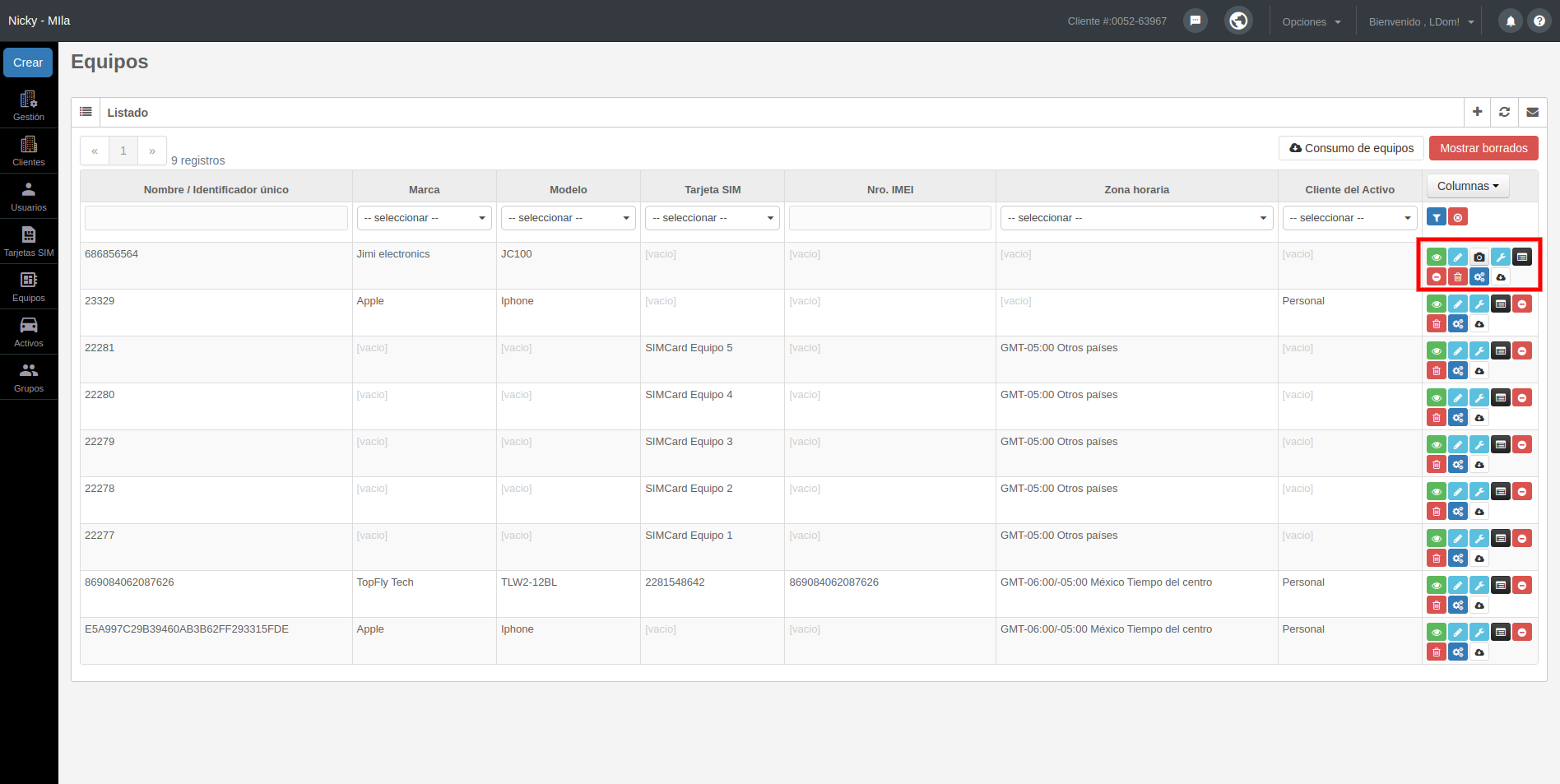
<span style="font-size: 12pt; font-family: Arial; color: #333333; background-color: transparent; font-weight: 400; font-style: normal; font-variant: normal; text-decoration: none; vertical-align: baseline; white-space: pre-wrap;">Este módulo le ayuda a administrar el registro de nuevos equipos GPS, así como la eliminación y modificación de estos.</span>

<span style="font-size: 12pt; font-family: Arial; color: #333333; background-color: transparent; font-weight: 400; font-style: normal; font-variant: normal; text-decoration: none; vertical-align: baseline; white-space: pre-wrap;">Para crear equipos GPS es necesario crear primero la tarjeta SIM y seguir los siguientes pasos:</span>

1. 1. 1. <span style="font-size: 12pt; font-family: Arial; color: #333333; background-color: transparent; font-weight: 400; font-style: normal; font-variant: normal; text-decoration: none; vertical-align: baseline; white-space: pre-wrap;">Para registrar el equipo GPS, se debe presionar el botón "+";</span>
        2. <span style="font-size: 12pt; font-family: Arial; color: #333333; background-color: transparent; font-weight: 400; font-style: normal; font-variant: normal; text-decoration: none; vertical-align: baseline; white-space: pre-wrap;">En el formulario que aparece deberá completar los campos solicitados, a continuación se describen alguno de ellos.</span>

<span style="font-size: 12pt; font-family: Arial; color: #333333; background-color: transparent; font-weight: bold; font-style: normal; font-variant: normal; text-decoration: none; vertical-align: baseline; white-space: pre-wrap;">a) ID\_EQUIPO,</span><span style="font-size: 12pt; font-family: Arial; color: #333333; background-color: transparent; font-weight: 400; font-style: normal; font-variant: normal; text-decoration: none; vertical-align: baseline; white-space: pre-wrap;"> ingrese el identificador único de licencia con el que identificara y programará su equipo, si su dispositivo reporta por IMEI se recomienda colocarlo (para verificar esto, consulte con el manual del equipo).</span>

<span style="font-size: 12pt; font-family: Arial; color: #333333; background-color: transparent; font-weight: bold; font-style: normal; font-variant: normal; text-decoration: none; vertical-align: baseline; white-space: pre-wrap;">b) Tarjeta SIM,</span><span style="font-size: 12pt; font-family: Arial; color: #333333; background-color: transparent; font-weight: 400; font-style: normal; font-variant: normal; text-decoration: none; vertical-align: baseline; white-space: pre-wrap;"> en este campo debe seleccionar la tarjeta SIM que previamente fue registrada y así se relaciona con este equipo. Recuerde que el sistema solo le permitirá asociar una tarjeta con un solo equipo.</span>

<span style="font-size: 12pt; font-family: Arial; color: #333333; background-color: transparent; font-weight: bold; font-style: normal; font-variant: normal; text-decoration: none; vertical-align: baseline; white-space: pre-wrap;">c) Nro. IMEI,</span><span style="font-size: 12pt; font-family: Arial; color: #333333; background-color: transparent; font-weight: 400; font-style: normal; font-variant: normal; text-decoration: none; vertical-align: baseline; white-space: pre-wrap;"> ingrese el número de IMEI de su equipo, este consta de quince dígitos, si su equipo no cuenta con quince dígitos tendrá que completar con ceros a la izquierda. El IMEI (del inglés International Mobile Station Equipment Identity, identidad internacional de equipo móvil) es un código USSD pregrabado en los equipos. Este código identifica al aparato de forma exclusiva a nivel mundial, y es transmitido por el aparato a la red al conectarse a esta.</span>

<span style="font-size: 12pt; font-family: Arial; color: #333333; background-color: transparent; font-weight: bold; font-style: normal; font-variant: normal; text-decoration: none; vertical-align: baseline; white-space: pre-wrap;">d) Números pánico,</span><span style="font-size: 12pt; font-family: Arial; color: #333333; background-color: transparent; font-weight: 400; font-style: normal; font-variant: normal; text-decoration: none; vertical-align: baseline; white-space: pre-wrap;"> registre el o los números telefónicos de celular donde se enviarán los mensajes de texto de las alertas tipo pánico generados por este equipo, esta alerta será notificada si cuenta con la aplicación SMS Gateway \[Véase en la ayuda SMS gateway\](toLink-40-SMS\_Gateway, los números que ingrese siempre deberán ir separados por coma y sin espacio.</span>

<span style="font-size: 12pt; font-family: Arial; color: #333333; background-color: transparent; font-weight: bold; font-style: normal; font-variant: normal; text-decoration: none; vertical-align: baseline; white-space: pre-wrap;">e) Correos pánicos,</span><span style="font-size: 12pt; font-family: Arial; color: #333333; background-color: transparent; font-weight: 400; font-style: normal; font-variant: normal; text-decoration: none; vertical-align: baseline; white-space: pre-wrap;"> introduzca el o los correos electrónicos de las personas autorizadas para recibir las notificaciones de las alertas tipo pánico generadas por este equipo. Puede ingresar uno o más correos siempre que sea separados por coma y sin espacio.</span>

<span style="font-size: 12pt; font-family: Arial; color: #333333; background-color: transparent; font-weight: bold; font-style: normal; font-variant: normal; text-decoration: none; vertical-align: baseline; white-space: pre-wrap;">f) Mensaje pánico,</span><span style="font-size: 12pt; font-family: Arial; color: #333333; background-color: transparent; font-weight: 400; font-style: normal; font-variant: normal; text-decoration: none; vertical-align: baseline; white-space: pre-wrap;"> en este campo si lo requiere agregue el texto con el mensaje que desea recibir para las alertas de pánico generados por este equipo.</span>

<span style="font-size: 12pt; font-family: Arial; color: #333333; background-color: transparent; font-weight: bold; font-style: normal; font-variant: normal; text-decoration: none; vertical-align: baseline; white-space: pre-wrap;">g) Imágenes,</span><span style="font-size: 12pt; font-family: Arial; color: #333333; background-color: transparent; font-weight: 400; font-style: normal; font-variant: normal; text-decoration: none; vertical-align: baseline; white-space: pre-wrap;"> esta opción solo está disponible si su equipo cuenta con envío de imágenes y cuente con una cámara conectada a este, se recomienda la consulta a soporte técnico para su homologación.</span>

<span style="font-size: 12pt; font-family: Arial; color: #333333; background-color: transparent; font-weight: bold; font-style: normal; font-variant: normal; text-decoration: none; vertical-align: baseline; white-space: pre-wrap;">h) Consumo combustible,</span><span style="font-size: 12pt; font-family: Arial; color: #333333; background-color: transparent; font-weight: 400; font-style: normal; font-variant: normal; text-decoration: none; vertical-align: baseline; white-space: pre-wrap;"> esta opción está disponible si su equipo cuenta con un caudalímetro de combustible o reporte por Can BUS el nivel de combustible.</span>

<span style="font-size: 12pt; font-family: Arial; color: #333333; background-color: transparent; font-weight: bold; font-style: normal; font-variant: normal; text-decoration: none; vertical-align: baseline; white-space: pre-wrap;">i) Zona horaria,</span><span style="font-size: 12pt; font-family: Arial; color: #333333; background-color: transparent; font-weight: 400; font-style: normal; font-variant: normal; text-decoration: none; vertical-align: baseline; white-space: pre-wrap;"> seleccione la zona horaria para su país, es importante para que su equipo reporte en el horario correspondiente.</span>

<span style="font-size: 12pt; font-family: Arial; color: #333333; background-color: transparent; font-weight: bold; font-style: normal; font-variant: normal; text-decoration: none; vertical-align: baseline; white-space: pre-wrap;">j) Latitud y longitud fija</span><span style="font-size: 12pt; font-family: Arial; color: #333333; background-color: transparent; font-weight: 400; font-style: normal; font-variant: normal; text-decoration: none; vertical-align: baseline; white-space: pre-wrap;">, utilizada para un equipo de pánico que no posea módulo GPS, por ejemplo alarmas.</span>

<span style="font-size: 12pt; font-family: Arial; color: #333333; background-color: transparent; font-weight: bold; font-style: normal; font-variant: normal; text-decoration: none; vertical-align: baseline; white-space: pre-wrap;">k) Voice monitoring,</span><span style="font-size: 12pt; font-family: Arial; color: #333333; background-color: transparent; font-weight: 400; font-style: normal; font-variant: normal; text-decoration: none; vertical-align: baseline; white-space: pre-wrap;"> si su equipo cuenta con esta configuración podrá activar en su equipo, esta función del GPS le permite llamar a un número (configurado en el equipo) cuando se presiona el botón de pánico; permitiendo a la persona que recibe la llamada escuchar lo que está sucediendo dentro del interior de su activo, sin activar el altavoz del equipo, para más información contacte al equipo de soporte.</span>

<span style="font-size: 12pt; font-family: Arial; color: #333333; background-color: transparent; font-weight: bold; font-style: normal; font-variant: normal; text-decoration: none; vertical-align: baseline; white-space: pre-wrap;">l) Contador de pasajeros,</span><span style="font-size: 12pt; font-family: Arial; color: #333333; background-color: transparent; font-weight: 400; font-style: normal; font-variant: normal; text-decoration: none; vertical-align: baseline; white-space: pre-wrap;"> si su equipo cuenta con la funcionalidad de contador de pasajeros en el activo seleccione esta opción.</span>

###### <span style="font-size: 12pt; font-family: Arial; color: #4a86e8; background-color: transparent; font-weight: bold; font-style: italic; font-variant: normal; text-decoration: none; vertical-align: baseline; white-space: pre-wrap;">Acciones</span>

[![image-1724775609726.png](https://docs.redgps.com/uploads/images/gallery/2024-08/scaled-1680-/image-1724775609726.png)](https://docs.redgps.com/uploads/images/gallery/2024-08/image-1724775609726.png)

######  

###### <span style="font-size: 11pt; font-family: Arial; color: #666666; background-color: transparent; font-weight: bold; font-style: italic; font-variant: normal; text-decoration: none; vertical-align: baseline; white-space: pre-wrap;"><span style="border: none; display: inline-block; overflow: hidden; width: 25px; height: 23px;">![](https://lh4.googleusercontent.com/i1r2FeYzGb-zU5TkUw5xN3QKBAOorT8X5TE_O0ZCOtsoDGvcVwkRsUS_hHNMW5lsx8toR3fF5kXzEmgYVCqkYePC-MAFtOl1rn55tHtOYSTjzU19J6xI_EPsOW4x0937YNrHBdOB "ver reportes")</span></span><span style="font-size: 11pt; font-family: Arial; color: #666666; background-color: transparent; font-weight: 400; font-style: italic; font-variant: normal; text-decoration: none; vertical-align: baseline; white-space: pre-wrap;">-</span><span style="font-size: 12pt; font-family: Arial; color: #666666; background-color: transparent; font-weight: bold; font-style: italic; font-variant: normal; text-decoration: none; vertical-align: baseline; white-space: pre-wrap;">Ver reportes del GPS</span>

<span style="font-size: 12pt; font-family: Arial; color: #333333; background-color: transparent; font-weight: 400; font-style: normal; font-variant: normal; text-decoration: none; vertical-align: baseline; white-space: pre-wrap;">En este reporte podrá visualizar las últimas muestras o reporte de su equipo.</span>

<span style="font-size: 12pt; font-family: Arial; color: #333333; background-color: transparent; font-weight: 400; font-style: normal; font-variant: normal; text-decoration: none; vertical-align: baseline; white-space: pre-wrap;">[![equipamiento esp2.png](https://docs.redgps.com/uploads/images/gallery/2024-08/scaled-1680-/equipamiento-esp2.png)](https://docs.redgps.com/uploads/images/gallery/2024-08/equipamiento-esp2.png)</span>

<span style="text-decoration: underline; color: #0000ff;"><span style="font-size: 12pt; font-family: Arial; background-color: transparent; font-weight: 400; font-style: normal; font-variant: normal; text-decoration: none; vertical-align: baseline; white-space: pre-wrap;">[Más información Últimas muestras del Activo](https://docs.redgps.com/books/preguntas-frecuentes/page/ultimas-muestras-del-activo "Últimas muestras")</span></span>

###### <span style="font-size: 11pt; font-family: Arial; color: #666666; background-color: transparent; font-weight: 400; font-style: italic; font-variant: normal; text-decoration: none; vertical-align: baseline; white-space: pre-wrap;"><span style="border: none; display: inline-block; overflow: hidden; width: 21px; height: 21px;">![](https://lh5.googleusercontent.com/acxq4x9o3NuCD9kDz3lxEZQ5ZXou4MsJeYOq288lahSNgTG4o5ULVmZgcstrZa9ZTkf1YbrCeaeQ784w6fbr3TmvbpkAhRYJffcYH2oZEr5xzp6kqgw7f5BXto2UAwKzJ8ZYWMqP "eliminar")</span></span><span style="font-size: 12pt; font-family: Arial; color: #666666; background-color: transparent; font-weight: bold; font-style: italic; font-variant: normal; text-decoration: none; vertical-align: baseline; white-space: pre-wrap;">-Eliminar historial</span>

<span style="font-size: 12pt; font-family: Arial; color: #333333; background-color: transparent; font-weight: 400; font-style: normal; font-variant: normal; text-decoration: none; vertical-align: baseline; white-space: pre-wrap;">Esta acción elimina las últimas muestras del reporte del equipo GPS.</span>

###### <span style="font-size: 12pt; font-family: Arial; color: #666666; background-color: transparent; font-weight: bold; font-style: italic; font-variant: normal; text-decoration: none; vertical-align: baseline; white-space: pre-wrap;"><span style="border: none; display: inline-block; overflow: hidden; width: 25px; height: 23px;">![](https://lh5.googleusercontent.com/UG4uwAd6YZzzQBfHyYXuB-REQgvmcm1HtG8WvtRKYz5LHAOkn_UxgUlRDzn9_oY1HoHcZh3-sgcnteI6ysny-djqlnE841tb5UZoUY0v-4PzGQ_uBBA7tKI05_McS3e-CII0_uz6 "ver reportes")</span></span><span style="font-size: 12pt; font-family: Arial; color: #666666; background-color: transparent; font-weight: bold; font-style: italic; font-variant: normal; text-decoration: none; vertical-align: baseline; white-space: pre-wrap;">-Planilla de sensores</span>

<span style="font-size: 12pt; font-family: Arial; color: #333333; background-color: #ffffff; font-weight: 400; font-style: normal; font-variant: normal; text-decoration: none; vertical-align: baseline; white-space: pre-wrap;">En este módulo le permite configurar los sensores con los que cuenta su equipo. Para configurar el tipo, subtipo y unidad; debe dar click en el nombre del parámetro. Todos los sensores configurados (OBD II, CANBUS, Inputs, Temperatura, etc) podrán visualizarse en Detalle avanzado de la plataforma mapa.</span>

[![herramienntaaspç.png](https://docs.redgps.com/uploads/images/gallery/2024-08/scaled-1680-/herramienntaaspc.png)](https://docs.redgps.com/uploads/images/gallery/2024-08/herramienntaaspc.png)

<span style="text-decoration: underline;"><span style="color: #0000ff;">[Más información Asignar sensores al Activo](https://docs.redgps.com/books/preguntas-frecuentes/page/configuracion-de-sensores)</span></span>

###### <span style="font-size: 11pt; font-family: Arial; color: #666666; background-color: transparent; font-weight: 400; font-style: italic; font-variant: normal; text-decoration: none; vertical-align: baseline; white-space: pre-wrap;"><span style="border: none; display: inline-block; overflow: hidden; width: 25px; height: 23px;">![](https://lh4.googleusercontent.com/Lw_YGxIGgYA9J6v50_js3UjdnOJw9Cg5yn35aIoO1l3MeiLDlHPRW8LhzjsAQ-ST0IkOw4dGVXBOXf8-x0wQFZSf89EC8oimKYff2Rjaxj-CjWms1ZqIKWB_NTuavoLvVK2p0LCj "ver reportes")</span></span><span style="font-size: 11pt; font-family: Arial; color: #666666; background-color: transparent; font-weight: 400; font-style: italic; font-variant: normal; text-decoration: none; vertical-align: baseline; white-space: pre-wrap;">-</span><span style="font-size: 12pt; font-family: Arial; color: #666666; background-color: transparent; font-weight: bold; font-style: italic; font-variant: normal; text-decoration: none; vertical-align: baseline; white-space: pre-wrap;">Asignar plantilla de inputs</span>

<span style="font-size: 12pt; font-family: Arial; color: #333333; background-color: transparent; font-weight: 400; font-style: normal; font-variant: normal; text-decoration: none; vertical-align: baseline; white-space: pre-wrap;">En el caso de que el gateway que utiliza su equipo no tenga los inputs/parámetros configurados, o desee personalizarlos deberá generar una nueva plantilla de </span><span style="font-size: 12pt; font-family: Arial; color: #333333; background-color: transparent; font-weight: 400; font-style: normal; font-variant: normal; text-decoration: none; vertical-align: baseline; white-space: pre-wrap;">inputs.</span>

En la primera pestaña se listan las plantillas que tengas creadas, desde la columna "Seleccionar" puedes marcar la plantilla que se le asignará al equipo.

**[![image-1698775151899.png](https://docs.redgps.com/uploads/images/gallery/2023-10/scaled-1680-/image-1698775151899.png)](https://docs.redgps.com/uploads/images/gallery/2023-10/image-1698775151899.png)**
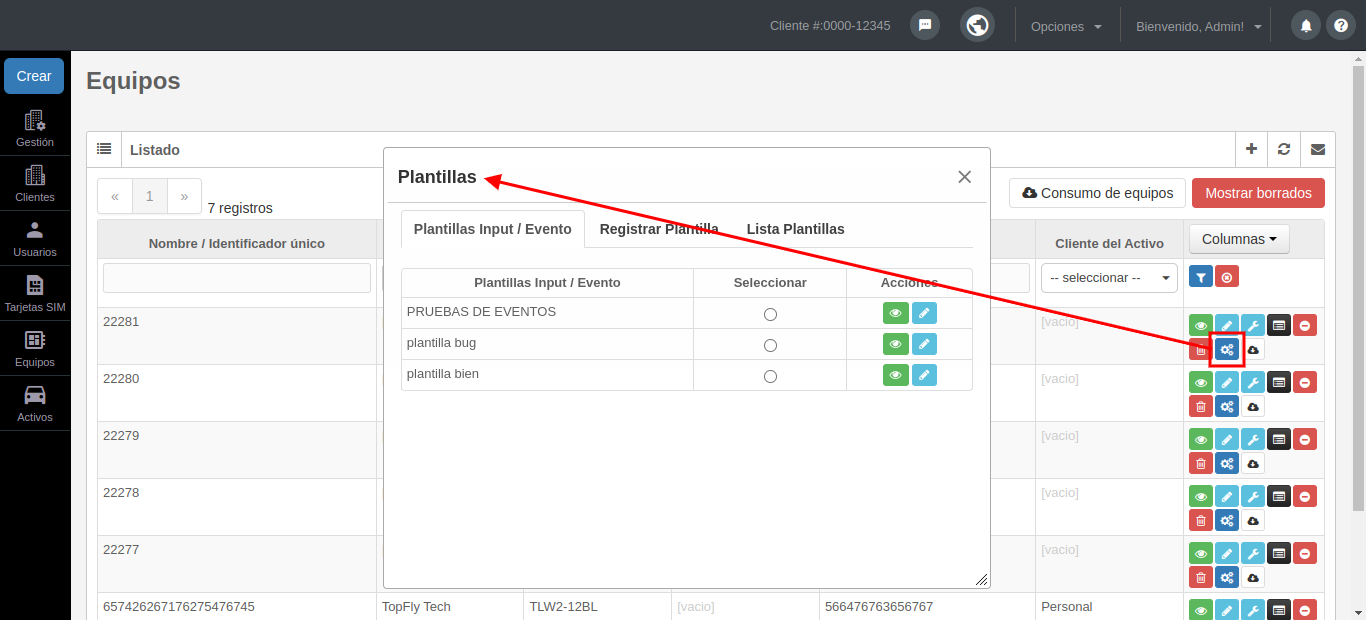
También podrás visualizar los valores ingresados en cada plantilla con el botón "Visualizar detalles" y los podrás editar con el botón "Editar plantilla".

Para crear una plantilla tienes que ingresar a la segunda pestaña "Registrar Plantilla", desde esa sección podrás identificar a la plantilla con el nombre deseado y posterior con el botón "Agregar input" definir los inputs y/o parametros junto con el valor que esperas recibir del mismo para generar el evento seleccionado:

[![image-1698790939107.png](https://docs.redgps.com/uploads/images/gallery/2023-10/scaled-1680-/image-1698790939107.png)](https://docs.redgps.com/uploads/images/gallery/2023-10/image-1698790939107.png)
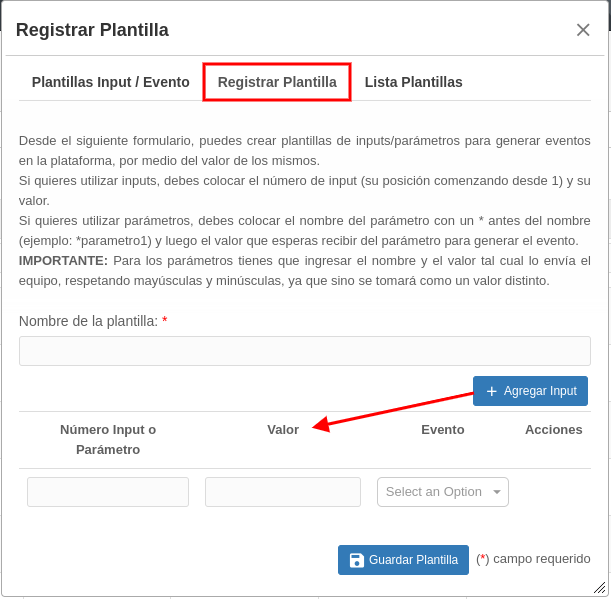
- Si quieres utilizar inputs, debes colocar el número de input (su posición comenzando desde 1) y su valor.
- Si quieres utilizar parámetros, debes colocar el nombre del parámetro con un \* antes del nombre (ejemplo: \*parametro1) y luego el valor que esperas recibir del parámetro para generar el evento.  
    **IMPORTANTE:** Tienes que ingresar el nombre y el valor tal cual lo envía el equipo, respetando mayúsculas y minúsculas, ya que sino se tomará como un valor distinto.

Desde la pestaña "Lista Plantillas" podrás visualizar el listado de plantillas creadas y eliminadas:

[![image-1698793997917.png](https://docs.redgps.com/uploads/images/gallery/2023-10/scaled-1680-/image-1698793997917.png)](https://docs.redgps.com/uploads/images/gallery/2023-10/image-1698793997917.png)
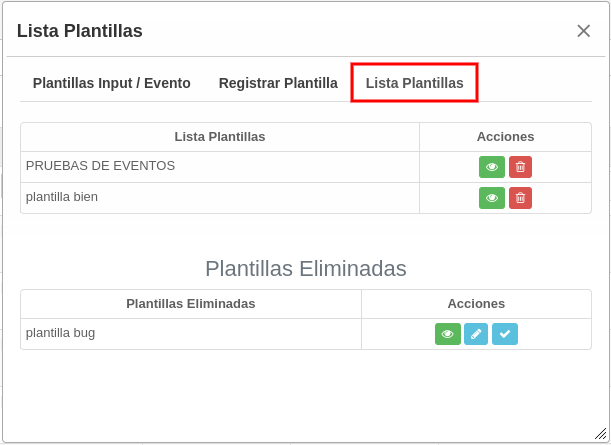
Podrás visualizar los valores ingresados en cada plantilla con el botón "Visualizar detalles" y aquellas plantillas que estén eliminadas las podrás recuperar con el botón "Restaurar plantilla".

######  

###### <span style="font-size: 11pt; font-family: Arial; color: #666666; background-color: transparent; font-weight: bold; font-style: italic; font-variant: normal; text-decoration: none; vertical-align: baseline; white-space: pre-wrap;"><span style="border: none; display: inline-block; overflow: hidden; width: 25px; height: 23px;">![](https://lh5.googleusercontent.com/FzdMbnGlK1QGVuS8YCZdzQ7LEhXXi6mdIH-_Pl_Qi1ABUnwWE5ponuRZQeH4SSgCTX_XE_Le0sUkmFsbyjsAiCsztZcMlqzfvzTgq9VOTMAU1GtdA1lKCcp9Cqb0WNjwaO1fkDUm "ver reportes")</span></span><span style="font-size: 11pt; font-family: Arial; color: #666666; background-color: transparent; font-weight: 400; font-style: italic; font-variant: normal; text-decoration: none; vertical-align: baseline; white-space: pre-wrap;">-</span><span style="font-size: 12pt; font-family: Arial; color: #666666; background-color: transparent; font-weight: bold; font-style: italic; font-variant: normal; text-decoration: none; vertical-align: baseline; white-space: pre-wrap;">Consumo del equipo</span>

<span style="font-size: 12pt; font-family: Arial; color: #333333; background-color: transparent; font-weight: 400; font-style: normal; font-variant: normal; text-decoration: none; vertical-align: baseline; white-space: pre-wrap;">En esta opción podrá ver el consumo de su equipo en cantidad de Mb y de unidades de sus datos GPRS y reportes.</span>

###### <span style="font-size: 11pt; font-family: Arial; color: #666666; background-color: transparent; font-weight: bold; font-style: italic; font-variant: normal; text-decoration: none; vertical-align: baseline; white-space: pre-wrap;"><span style="border: none; display: inline-block; overflow: hidden; width: 25px; height: 23px;">![](https://lh6.googleusercontent.com/zRkx1i25PHVNAA99PWLKBfts37-Jdio8N9pwUo8qI4XPbUZXmHnBy8dirIu0J9oKCOLKK_FhpZCOYBrfV26P-0FezKYfSYhASnDLfW05TFs32NjnL85KQnH5OXvpFcFEPB1ebv_k "ver reportes")</span></span><span style="font-size: 12pt; font-family: Arial; color: #666666; background-color: transparent; font-weight: bold; font-style: italic; font-variant: normal; text-decoration: none; vertical-align: baseline; white-space: pre-wrap;">-Bajas equipos - licencias</span>

###### <span style="font-size: 12pt; font-family: Arial; color: #000000; background-color: transparent; font-weight: 400; font-style: normal; font-variant: normal; text-decoration: none; vertical-align: baseline; white-space: pre-wrap;">Las bajas de sus equipos-licencias ahora las podrá realizar usted mismo, tendrá la facilidad de transferir la información almacenada en el equipo que desea eliminar a otro equipo que esté activo; o simplemente anular la información asociada al equipo que dará de baja.</span>

<span style="font-size: 12pt; font-family: Arial; color: #333333; background-color: transparent; font-weight: 400; font-style: normal; font-variant: normal; text-decoration: none; vertical-align: baseline; white-space: pre-wrap;">Al hacer clic en el icono de eliminar, se mostrará un modal con las opciones que podrá realizar para eliminar el equipo. Es </span><span style="font-size: 12pt; font-family: Arial; color: #333333; background-color: transparent; font-weight: bold; font-style: normal; font-variant: normal; text-decoration: none; vertical-align: baseline; white-space: pre-wrap;">IMPORTANTE</span><span style="font-size: 12pt; font-family: Arial; color: #333333; background-color: transparent; font-weight: 400; font-style: normal; font-variant: normal; text-decoration: none; vertical-align: baseline; white-space: pre-wrap;"> que esté consciente que en el momento que realice la baja, los datos históricos del equipo serán eliminados definitivamente del sistema y estos </span><span style="font-size: 12pt; font-family: Arial; color: #333333; background-color: transparent; font-weight: bold; font-style: normal; font-variant: normal; text-decoration: none; vertical-align: baseline; white-space: pre-wrap;">no podrán ser recuperados</span><span style="font-size: 12pt; font-family: Arial; color: #333333; background-color: transparent; font-weight: 400; font-style: normal; font-variant: normal; text-decoration: none; vertical-align: baseline; white-space: pre-wrap;">.</span>

# Activos

<span style="font-weight: 400;">Un activo es todo aquello que es rastreable y que cuente con una tecnología capaz de transmitir datos. En este módulo podrá crear, editar, eliminar activos, así como remplazar equipos GPS y asignar procedimientos.</span>

<span style="font-weight: 400;">Para registrar un activo, se debe presionar el botón “+” y completar los datos del formulario, a continuación se describen algunos de ellos.</span>

<span style="font-weight: 400;">\*</span>**Tipo,**<span style="font-weight: 400;"> campo para indicar el tipo de activo que se va a rastrear.</span>

<span style="font-weight: 400;">\*</span>**Núm. económico,**<span style="font-weight: 400;"> ingrese el dato si su activo cuenta con algún número de identificación de la compañía o genere uno. Se puede asociar con la placa.</span>

<span style="font-weight: 400;">\*</span>**Placa,**<span style="font-weight: 400;"> se coloca la placa o patente del activo.</span>

<span style="font-weight: 400;">\*</span>**Placa caja,**<span style="font-weight: 400;"> se refiere a la placa o patente del activo si tiene remolque.</span>

<span style="font-weight: 400;">\*</span>**Cliente,**<span style="font-weight: 400;"> en este campo se elige el cliente al que se asigna este activo.</span>

- <span style="font-weight: 400;">Nota: Este campo tendrá que ser ingresado siempre y cuando se tenga dado de alta algún cliente, para que exista una relación cliente–activo, cuando es un registro nuevo y aún no existen clientes se dejará en blanco. </span>[<span style="font-weight: 400;">(Ver ayuda Clientes)</span>](https://partners.redgps.com/content/toLink-7-Clientes)

<span style="font-weight: 400;">\*</span>**Equipo,**<span style="font-weight: 400;"> en este campo deberá seleccionar el ID del equipo previamente dado de alta, de esta manera se generará la relación equipo - activo.</span>

<span style="font-weight: 400;">\*</span>**Imagen,**<span style="font-weight: 400;"> si así lo desea podrá subir una imagen que identifique a su activo y podrá visualizar en la ventana detalles activo que aparecen en el mapa.</span>

- <span style="font-weight: 400;">Nota: En este campo puede hacer algún comentario, aclaración o nota referente a este activo.</span>

<span style="font-weight: 400;">\*</span>**Rendimiento de combustible (Km),**<span style="font-weight: 400;"> en este campo deberá llenar el dato que en el manual del vehículo figura como los litros que consume su vehículo por kilómetro, este valor es necesario cuando requiera hacer un reporte por consumo de gasolina en un recorrido determinado.</span>

<span style="font-weight: 400;">\*</span>**Capacidad combustible,**<span style="font-weight: 400;"> este solo se llena si cuenta con un sensor de combustible en el activo y tendrá que ingresar la capacidad del tanque de combustible.</span>

<span style="font-weight: 400;">\*</span>**Capacidad segundo tanque,**<span style="font-weight: 400;"> este solo se llena si cuenta con un sensor de combustible en el activo y si cuenta con un segundo tanque por lo que tendrá que ingresar la capacidad del tanque de combustible.</span>

<span style="font-weight: 400;">\*</span>**Valor digital máximo,**<span style="font-weight: 400;"> en este campo se ingresa si el sensor de combustible de tu activo reporta un valor digital, se deberá ingresar sólo el valor numérico.</span>

<span style="font-weight: 400;">\*</span>**Temperatura mínima,**<span style="font-weight: 400;"> este campo se deberá llenar si cuenta con un sensor de combustible y colocará el valor mínimo.</span>

<span style="font-weight: 400;">\*</span>**Temperatura máxima,**<span style="font-weight: 400;"> este campo se deberá llenar si cuenta con un sensor de combustible y colocará el valor máximo.</span>

<span style="font-weight: 400;">\*</span>**Unidad de consumo,**<span style="font-weight: 400;"> este campo se debe llenar solo si tiene sensor de combustible y deberá elegir la unidad que quieres para que reporte.</span>

<span style="font-weight: 400;">\*</span>**Odómetro,**<span style="font-weight: 400;"> en este campo deberá colocar el odómetro de su activo</span>

<span style="font-weight: 400;">\*</span>**Odómetro Software,**<span style="font-weight: 400;"> en esta selección elegirá “Si'' cuando desee que el odómetro lo calcule la plataforma o elija “No” para que el odómetro del activo sea enviado a través del dispositivo GPS.</span>

**"Últimas Muestras"** ver <span style="text-decoration: underline; color: #0000ff;">[Últimas muestras](https://docs.redgps.com/books/preguntas-frecuentes/page/ultimas-muestras-del-activo "Últimas muestras")</span>

# Grupos