# OnBus

# Viajes


# Añadir Rutas

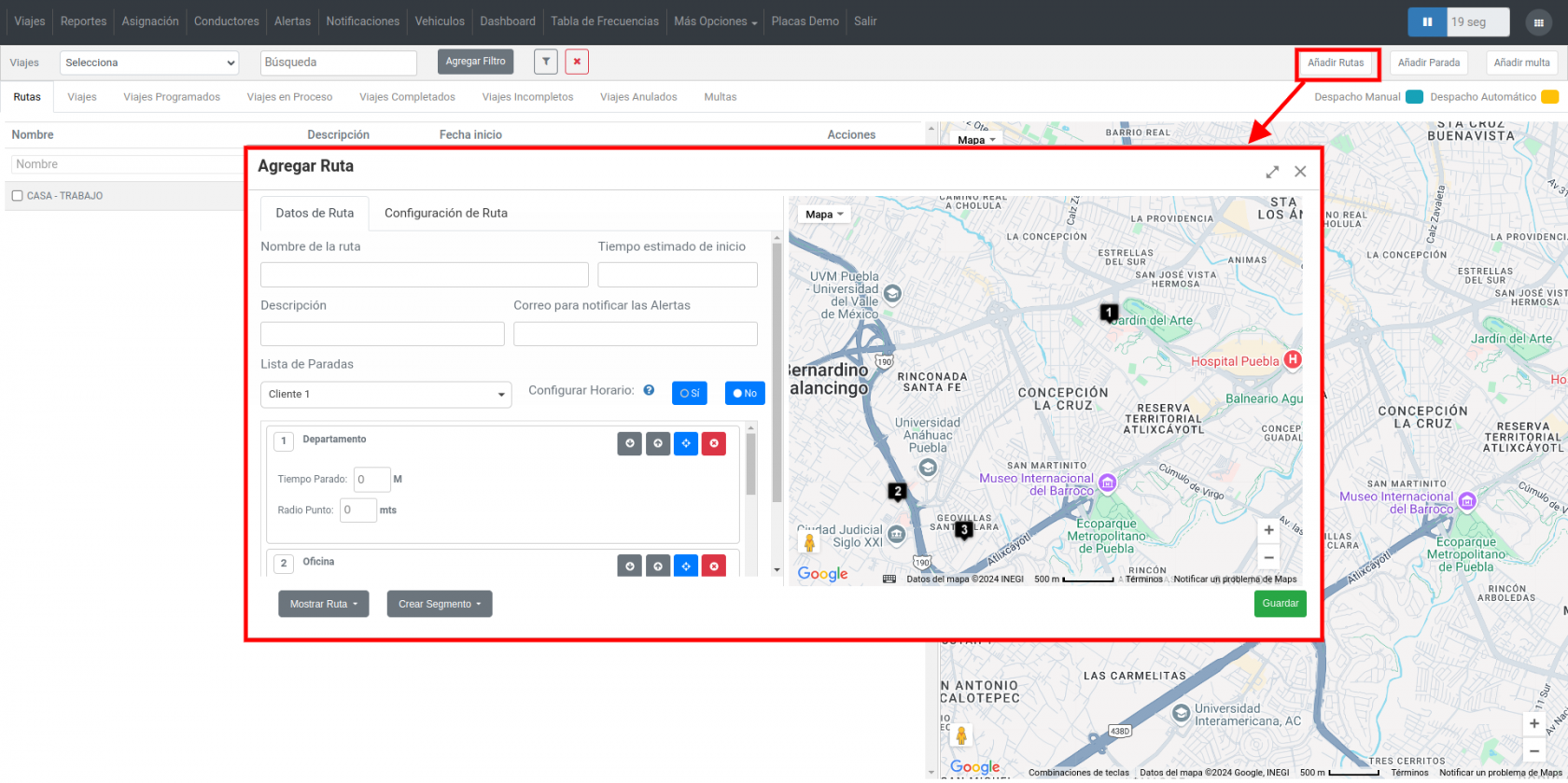
<span style="font-size: 11pt; font-family: Arial; color: #000000; background-color: transparent; font-weight: 400; font-style: normal; font-variant: normal; text-decoration: none; vertical-align: baseline; white-space: pre-wrap;">En la pestaña </span><span style="font-size: 11pt; font-family: Arial; color: #000000; background-color: transparent; font-weight: bold; font-style: italic; font-variant: normal; text-decoration: none; vertical-align: baseline; white-space: pre-wrap;">“Viajes”</span><span style="font-size: 11pt; font-family: Arial; color: #000000; background-color: transparent; font-weight: 400; font-style: normal; font-variant: normal; text-decoration: none; vertical-align: baseline; white-space: pre-wrap;"> podremos crear rutas y paradas. Añadir Ruta: Aquí se agregará la ruta completa que deberá seguir un activo. Se podrán añadir lugares o Geocercas.</span>

- - - <span style="font-size: 12pt; font-family: Arial; color: #666666; background-color: transparent; font-weight: bold; font-style: italic; font-variant: normal; text-decoration: none; vertical-align: baseline; white-space: pre-wrap;">Nombre de ruta:</span><span style="font-size: 12pt; font-family: Arial; color: #666666; background-color: transparent; font-weight: 400; font-style: normal; font-variant: normal; text-decoration: none; vertical-align: baseline; white-space: pre-wrap;"> Ingrese el nombre que llevará la ruta.</span>
        - <span style="font-size: 12pt; font-family: Arial; color: #666666; background-color: transparent; font-weight: bold; font-style: normal; font-variant: normal; text-decoration: none; vertical-align: baseline; white-space: pre-wrap;">Tiempo estimado de inicio</span><span style="font-size: 12pt; font-family: Arial; color: #666666; background-color: transparent; font-weight: 400; font-style: normal; font-variant: normal; text-decoration: none; vertical-align: baseline; white-space: pre-wrap;">: Será la fecha en la que iniciará la ruta.</span>
        - <span style="font-size: 12pt; font-family: Arial; color: #666666; background-color: transparent; font-weight: bold; font-style: italic; font-variant: normal; text-decoration: none; vertical-align: baseline; white-space: pre-wrap;">Descripción: </span><span style="font-size: 12pt; font-family: Arial; color: #666666; background-color: transparent; font-weight: 400; font-style: normal; font-variant: normal; text-decoration: none; vertical-align: baseline; white-space: pre-wrap;">Breve descripción de su ruta (opcional).</span>
        - <span style="font-size: 12pt; font-family: Arial; color: #666666; background-color: transparent; font-weight: bold; font-style: italic; font-variant: normal; text-decoration: none; vertical-align: baseline; white-space: pre-wrap;">Correo para notificar las alertas:</span><span style="font-size: 12pt; font-family: Arial; color: #666666; background-color: transparent; font-weight: 400; font-style: normal; font-variant: normal; text-decoration: none; vertical-align: baseline; white-space: pre-wrap;"> Ingrese el email en el que se estarán enviando las alertas generadas por los activos que estén en la ruta. Alertas: Selecciones las alertas que desea recibir mientras la ruta se está ejecutando.</span>
        - <span style="font-size: 12pt; font-family: Arial; color: #666666; background-color: transparent; font-weight: bold; font-style: italic; font-variant: normal; text-decoration: none; vertical-align: baseline; white-space: pre-wrap;">Lista de paradas:</span><span style="font-size: 12pt; font-family: Arial; color: #666666; background-color: transparent; font-weight: 400; font-style: normal; font-variant: normal; text-decoration: none; vertical-align: baseline; white-space: pre-wrap;"> Seleccione lugares y geocercas que representarán las paradas que tendrá la ruta. Aquí podrá definir tiempos de tolerancia para llegar a la parada, la hora en la que se deberá llegar, el tiempo que el activo podrá estar parado, etc.</span>
        - <span style="font-size: 12pt; font-family: Arial; color: #666666; background-color: transparent; font-weight: bold; font-style: italic; font-variant: normal; text-decoration: none; vertical-align: baseline; white-space: pre-wrap;">Configurar horario: </span><span style="font-size: 12pt; font-family: Arial; color: #666666; background-color: transparent; font-weight: 400; font-style: normal; font-variant: normal; text-decoration: none; vertical-align: baseline; white-space: pre-wrap;">Se asigna una hora específica de llegada de cada una de las paradas (hora de llegada).</span>

<span style="font-size: 12pt; font-family: Arial; color: #333333; background-color: transparent; font-weight: 400; font-style: normal; font-variant: normal; text-decoration: none; vertical-align: baseline; white-space: pre-wrap;">Esos son los datos básicos para crear una ruta, al final haga clic en el botón “Guardar” para que pueda visualizar esta ruta en “Rutas”.</span>

[![onbus esp.png](https://docs.redgps.com/uploads/images/gallery/2024-11/scaled-1680-/onbus-esp.png)](https://docs.redgps.com/uploads/images/gallery/2024-11/onbus-esp.png)

<span style="font-size: 12pt; font-family: Arial; color: #333333; background-color: transparent; font-weight: 400; font-style: normal; font-variant: normal; text-decoration: none; vertical-align: baseline; white-space: pre-wrap;">Como acciones adicionales podrá:</span>

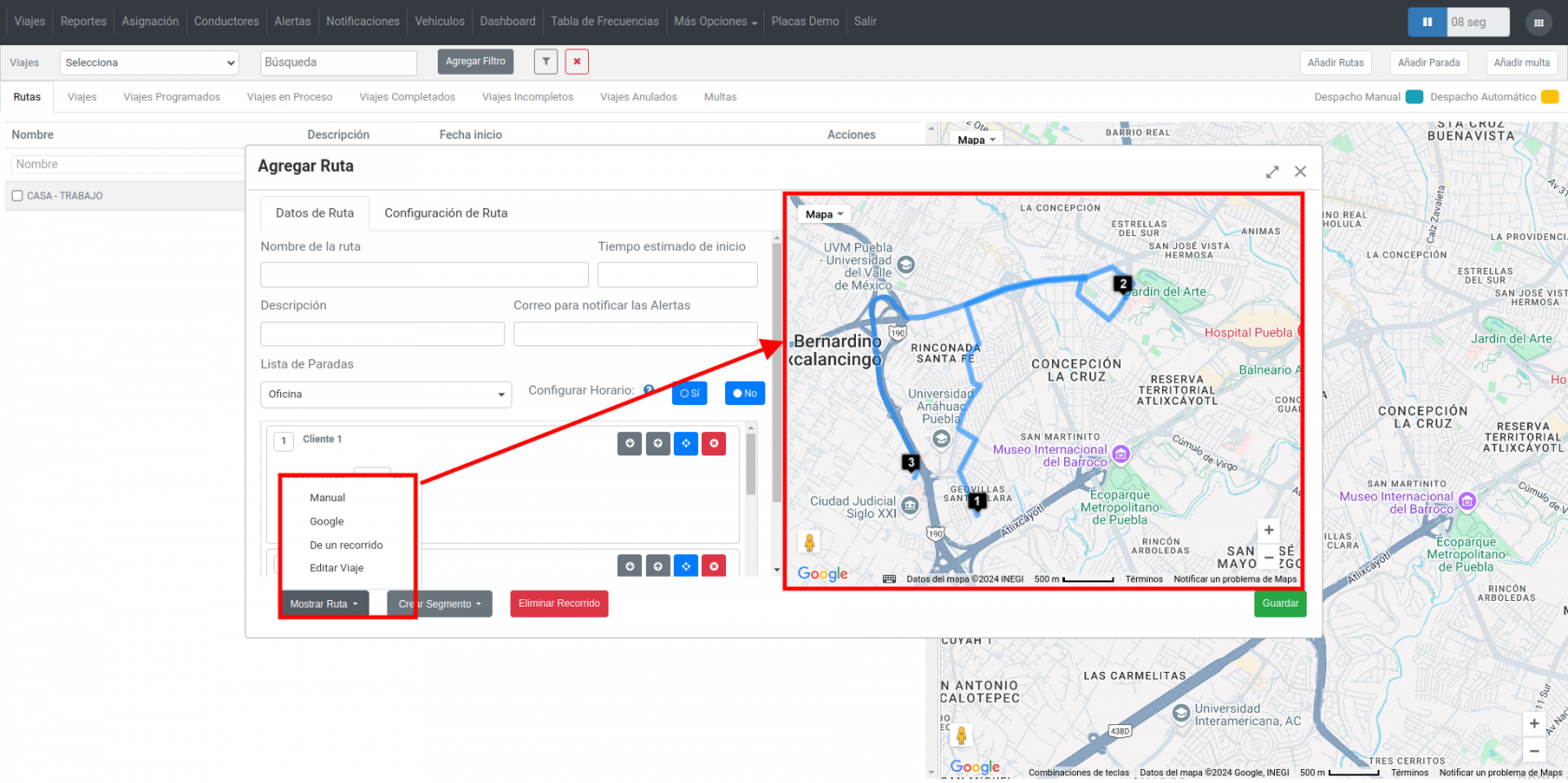
- - - <span style="font-size: 12pt; font-family: Arial; color: #666666; background-color: transparent; font-weight: bold; font-style: italic; font-variant: normal; text-decoration: none; vertical-align: baseline; white-space: pre-wrap;">Mostrar Ruta:</span><span style="font-size: 12pt; font-family: Arial; color: #666666; background-color: transparent; font-weight: 400; font-style: normal; font-variant: normal; text-decoration: none; vertical-align: baseline; white-space: pre-wrap;"> Podrá visualizar el recorrido de su ruta entre los puntos seleccionados como paradas, tiene la opción de elegir el recorrido manual, detectado por Google, de otro recorrido o editar el viaje.</span>

[![onbus 2.png](https://docs.redgps.com/uploads/images/gallery/2024-11/scaled-1680-/Uijonbus-2.png)](https://docs.redgps.com/uploads/images/gallery/2024-11/Uijonbus-2.png)

- - - <span style="font-size: 12pt; font-family: Arial; color: #666666; background-color: transparent; font-weight: bold; font-style: italic; font-variant: normal; text-decoration: none; vertical-align: baseline; white-space: pre-wrap;">Crear Segmento:</span><span style="font-size: 12pt; font-family: Arial; color: #666666; background-color: transparent; font-weight: 400; font-style: normal; font-variant: normal; text-decoration: none; vertical-align: baseline; white-space: pre-wrap;"> Son pequeñas fragmentos de la ruta en donde podemos crear acciones específicas o se pueden crear parámetros, por ejemplo bajar la velocidad en un punto específico, abrir o cerrar puertas, ignición Off y On.</span>

# Rutas

## <span style="font-size: 16pt; font-family: Arial; color: #000000; background-color: transparent; font-weight: 400; font-style: normal; font-variant: normal; text-decoration: none; vertical-align: baseline; white-space: pre-wrap;">Configuración de despacho rutas</span>

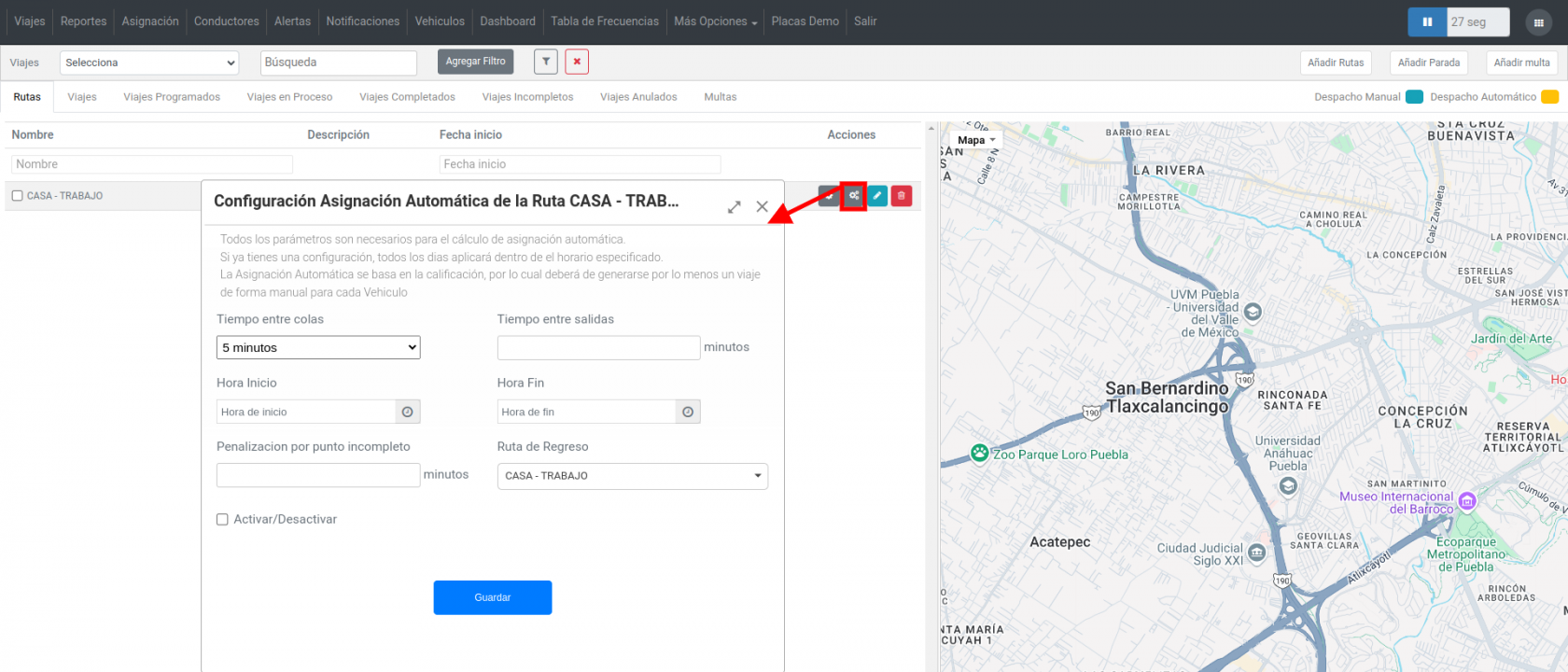
<span style="font-size: 12pt; font-family: Arial; color: #333333; background-color: transparent; font-weight: 400; font-style: normal; font-variant: normal; text-decoration: none; vertical-align: baseline; white-space: pre-wrap;">Dentro de OnBus, en la opción </span><span style="font-size: 12pt; font-family: Arial; color: #333333; background-color: transparent; font-weight: bold; font-style: italic; font-variant: normal; text-decoration: none; vertical-align: baseline; white-space: pre-wrap;">rutas</span><span style="font-size: 12pt; font-family: Arial; color: #333333; background-color: transparent; font-weight: 400; font-style: normal; font-variant: normal; text-decoration: none; vertical-align: baseline; white-space: pre-wrap;"> aparece un nuevo botón color gris de configuración por cada ruta.</span>

<span style="font-size: 12pt; font-family: Arial; color: #333333; background-color: transparent; font-weight: 400; font-style: normal; font-variant: normal; text-decoration: none; vertical-align: baseline; white-space: pre-wrap;">Este botón permitirá poder configurar los parámetros para el despacho automático como se puede ver en la siguiente imagen:</span>

[![rutas 1.png](https://docs.redgps.com/uploads/images/gallery/2024-12/scaled-1680-/rutas-1.png)](https://docs.redgps.com/uploads/images/gallery/2024-12/rutas-1.png)

- - - <span style="font-size: 12pt; font-family: Arial; color: #666666; background-color: transparent; font-weight: bold; font-style: italic; font-variant: normal; text-decoration: none; vertical-align: baseline; white-space: pre-wrap;">Tiempo entre colas:</span><span style="font-size: 12pt; font-family: Arial; color: #666666; background-color: transparent; font-weight: 400; font-style: normal; font-variant: normal; text-decoration: none; vertical-align: baseline; white-space: pre-wrap;"> El tiempo entre colas son pequeños grupos de autobuses que fueron llegando a la base en un cierto tiempo.</span>

<span style="font-size: 12pt; font-family: Arial; color: #333333; background-color: transparent; font-weight: bold; font-style: italic; font-variant: normal; text-decoration: none; vertical-align: baseline; white-space: pre-wrap;">Ejemplo:</span><span style="font-size: 12pt; font-family: Arial; color: #333333; background-color: transparent; font-weight: 400; font-style: normal; font-variant: normal; text-decoration: none; vertical-align: baseline; white-space: pre-wrap;"> Tiempo entre colas: 10 Min 5:00 AM – 5:10 AM 5:10 AM – 5:20 AM 5:20 AM – 5:30</span>

<span style="font-size: 12pt; font-family: Arial; color: #333333; background-color: transparent; font-weight: 400; font-style: normal; font-variant: normal; text-decoration: none; vertical-align: baseline; white-space: pre-wrap;">En este ejemplo podemos ver que con un tiempo entre colas de 10 minutos pueden llegar 4, 3 o 1 unidad a la base.</span>

<span style="font-size: 12pt; font-family: Arial; color: #333333; background-color: transparent; font-weight: 400; font-style: normal; font-variant: normal; text-decoration: none; vertical-align: baseline; white-space: pre-wrap;">En el caso de los grupos que tienen más de una unidad se escogerá el que tenga mejor calificación y lo despacha al finalizar el tiempo del grupo es decir 5:10 AM.</span>

<span style="font-size: 12pt; font-family: Arial; color: #333333; background-color: transparent; font-weight: bold; font-style: italic; font-variant: normal; text-decoration: none; vertical-align: baseline; white-space: pre-wrap;">Importante: Para poder realizar el despacho del siguiente grupo todas las unidades del grupo anterior ya debieron ser despachadas.</span>

- - - <span style="font-size: 12pt; font-family: Arial; color: #666666; background-color: transparent; font-weight: bold; font-style: italic; font-variant: normal; text-decoration: none; vertical-align: baseline; white-space: pre-wrap;">Tiempo entre salidas:</span><span style="font-size: 12pt; font-family: Arial; color: #666666; background-color: transparent; font-weight: 400; font-style: normal; font-variant: normal; text-decoration: none; vertical-align: baseline; white-space: pre-wrap;"> El tiempo entre salidas es el tiempo en que se estará despachando cada autobús, como se explicaba en el ejemplo anterior, si el primer autobús se despacha a las 5:10 y se selecciona que cada autobús se debe despachar cada 15 minutos el segundo será despachado a las 5:25 AM.</span>
        - <span style="font-size: 12pt; font-family: Arial; color: #666666; background-color: transparent; font-weight: bold; font-style: italic; font-variant: normal; text-decoration: none; vertical-align: baseline; white-space: pre-wrap;">Hora Inicio – Hora Fin:</span><span style="font-size: 12pt; font-family: Arial; color: #666666; background-color: transparent; font-weight: 400; font-style: normal; font-variant: normal; text-decoration: none; vertical-align: baseline; white-space: pre-wrap;"> A partir de qué horario la plataforma debe empezar a generar grupos y a partir de que horario debe dejar de crearlos. </span>
        - <span style="font-size: 12pt; font-family: Arial; color: #666666; background-color: transparent; font-weight: 400; font-style: normal; font-variant: normal; text-decoration: none; vertical-align: baseline; white-space: pre-wrap;">**Penalización por punto incompleto:** La penalización por punto incompleto es un apartado opcional en el cual puede establecer qué tiempo negativo será cargado al conductor en caso de no pasar por alguna parada.</span>
        - <span style="font-size: 12pt; font-family: Arial; color: #666666; background-color: transparent; font-weight: bold; font-style: italic; font-variant: normal; text-decoration: none; vertical-align: baseline; white-space: pre-wrap;">Ruta de regreso:</span><span style="font-size: 12pt; font-family: Arial; color: #666666; background-color: transparent; font-weight: 400; font-style: normal; font-variant: normal; text-decoration: none; vertical-align: baseline; white-space: pre-wrap;"> Es la ruta que tomará para poder regresar nuevamente a la misma base.</span>
        - <span style="font-size: 12pt; font-family: Arial; color: #666666; background-color: transparent; font-weight: bold; font-style: italic; font-variant: normal; text-decoration: none; vertical-align: baseline; white-space: pre-wrap;">Activar/desactivar:</span><span style="font-size: 12pt; font-family: Arial; color: #666666; background-color: transparent; font-weight: 400; font-style: normal; font-variant: normal; text-decoration: none; vertical-align: baseline; white-space: pre-wrap;"> Sirve para activar o desactivar la configuración del despacho automático.</span>

<span id="bkmrk-%C2%A0-1" style="font-weight: normal;"></span>

# Configuración

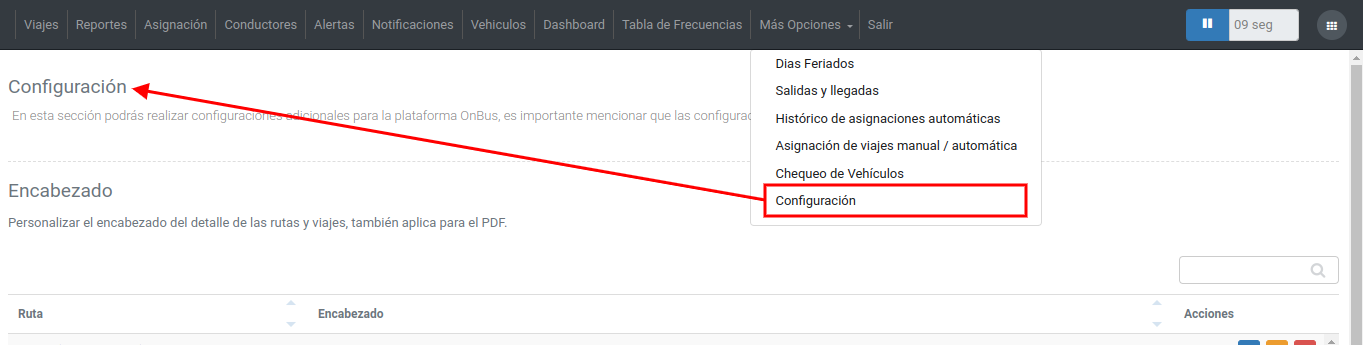
En esta sección se podrán realizar configuraciones adicionales para la plataforma OnBus. Es importante mencionar que todas las configuraciones realizadas en esta sección aplican para todo el cliente.

[![image-1704824184188.png](https://docs.redgps.com/uploads/images/gallery/2024-01/scaled-1680-/image-1704824184188.png)](https://docs.redgps.com/uploads/images/gallery/2024-01/image-1704824184188.png)
##### Encabezado

En esta sección se listan las rutas existentes y permite personalizar el encabezado que se visualiza en el Detalle de Ruta y Viaje:

[![image-1704835804044.png](https://docs.redgps.com/uploads/images/gallery/2024-01/scaled-1680-/image-1704835804044.png)](https://docs.redgps.com/uploads/images/gallery/2024-01/image-1704835804044.png)
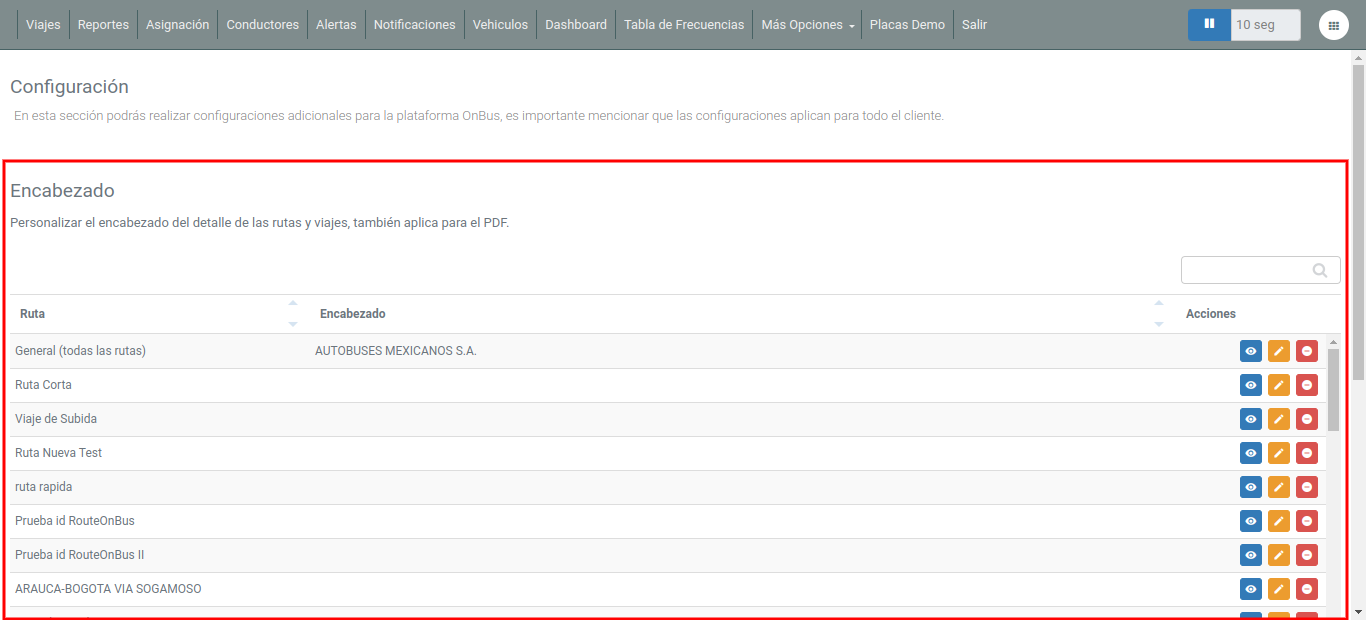
Para configurarlo solo es necesario buscar la ruta de la cual se necesita personalizar el encabezado y hacer clic en el botón "Editar" para ingresar la descripción y/o una imagen para el encabezado del detalle:

[![image-1704835955001.png](https://docs.redgps.com/uploads/images/gallery/2024-01/scaled-1680-/image-1704835955001.png)](https://docs.redgps.com/uploads/images/gallery/2024-01/image-1704835955001.png)
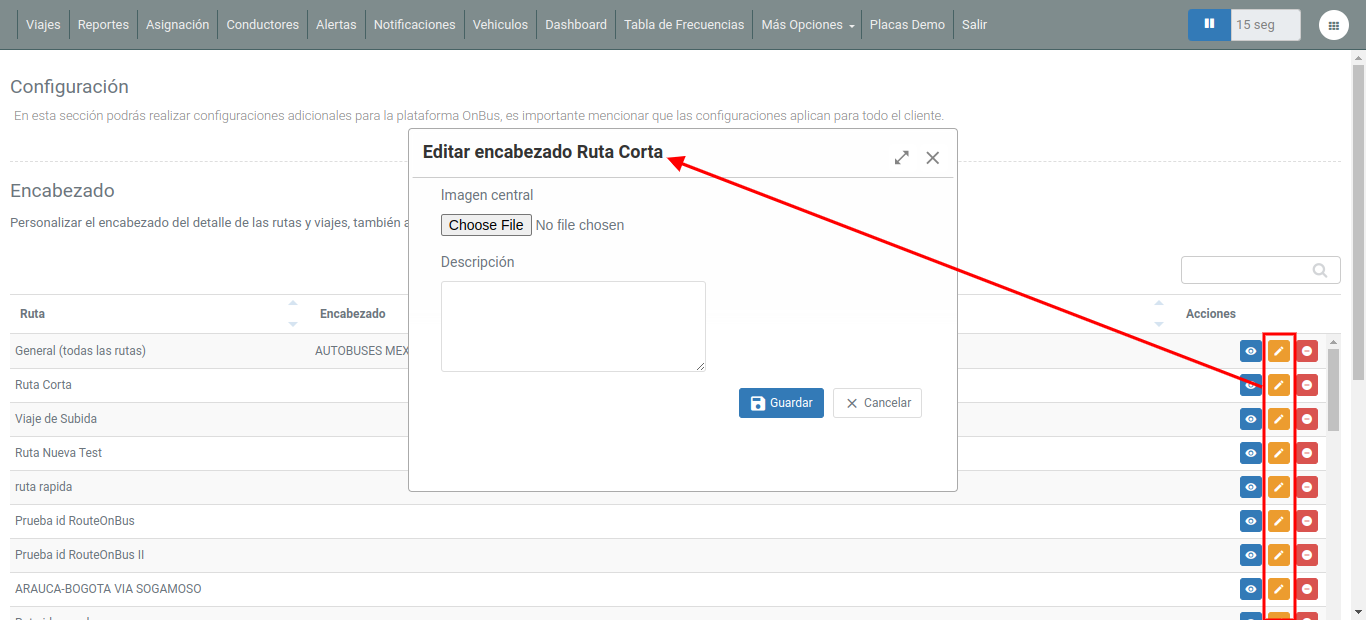
Si se requiere personalizar el mismo encabezado para todas las rutas, se puede utilizar la primera opción "General (todas las rutas)".

El botón "Previsualizar" muestra un ejemplo de cómo se visualizará el encabezado.

Con el botón "Limpiar" se podrá eliminar la personalización de los encabezados.

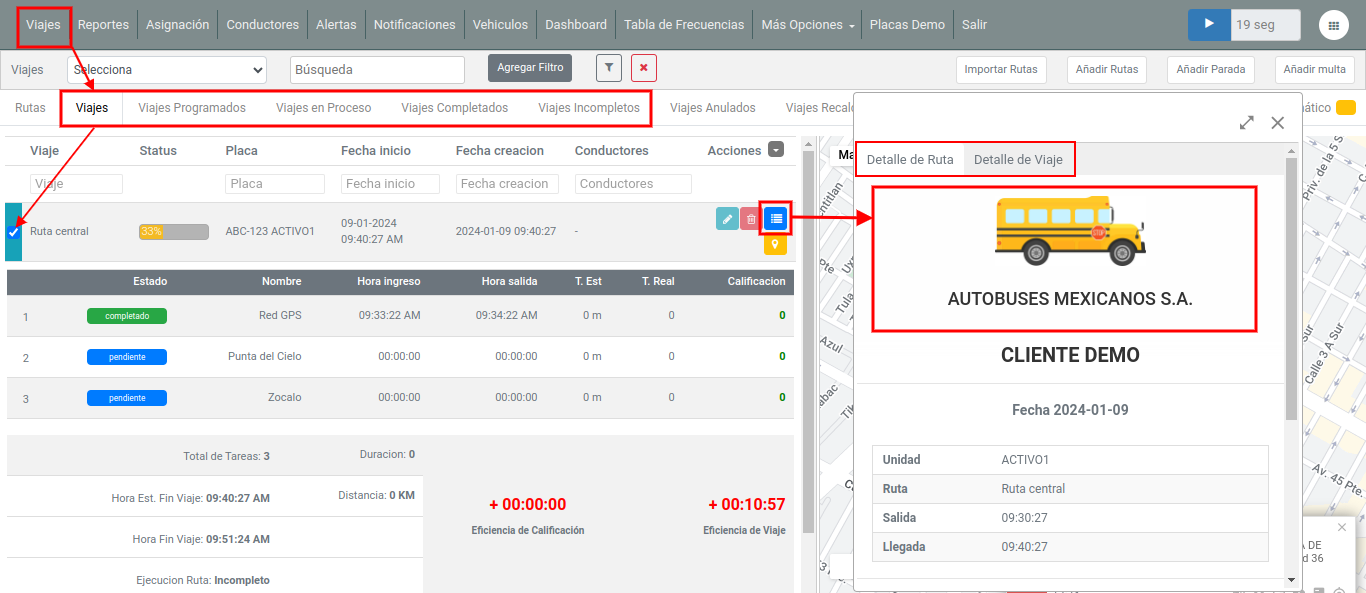
El encabezado que se configuró se podrá visualizar en el botón "Detalle de Ruta/Viaje":

[![image-1704826432476.png](https://docs.redgps.com/uploads/images/gallery/2024-01/scaled-1680-/image-1704826432476.png)](https://docs.redgps.com/uploads/images/gallery/2024-01/image-1704826432476.png)
##### Reprocesar rutas incompletas

Esta opción sirve para volver a procesar las rutas automáticamente, después de que se finalice y así poder tomar en cuenta los datos buffer:

[![image-1704836368453.png](https://docs.redgps.com/uploads/images/gallery/2024-01/scaled-1680-/image-1704836368453.png)](https://docs.redgps.com/uploads/images/gallery/2024-01/image-1704836368453.png)
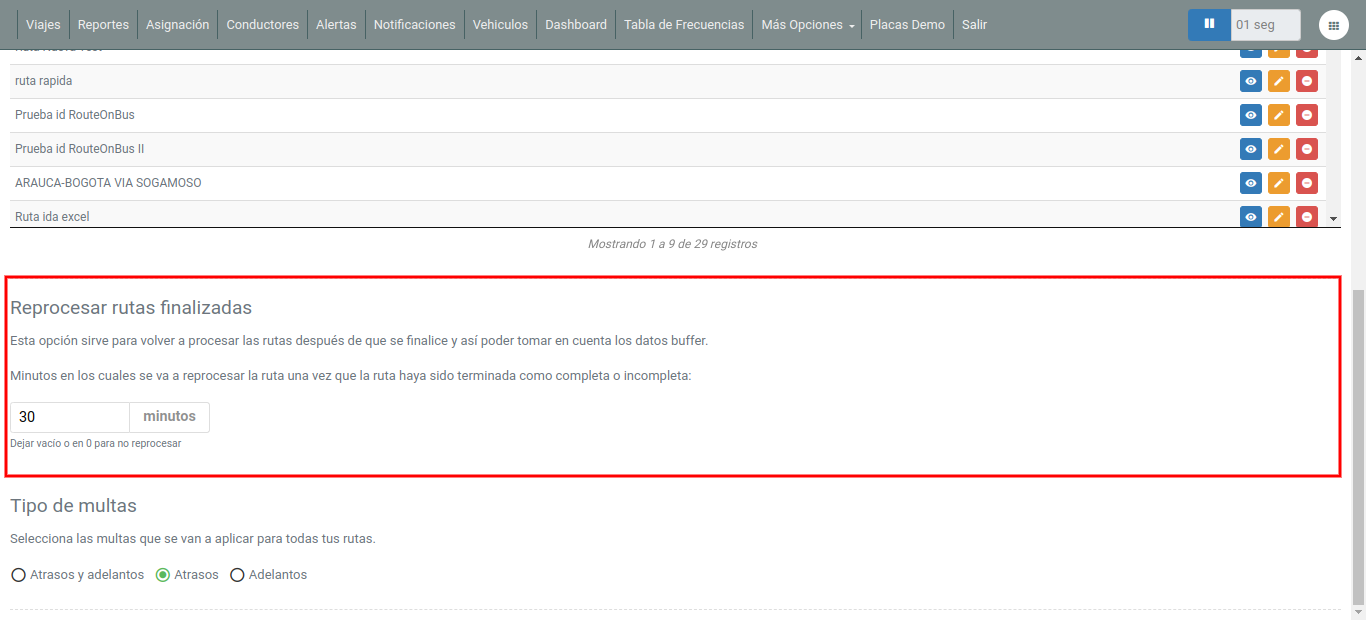
Únicamente se tiene que ingresar la cantidad de minutos que tienen que pasar luego de que la ruta se finalice para reprocesarla.

##### Tipo de multas

Permite definir el tipo de impuntualidad que aplicará para las multas de todas las rutas:

[![image-1704836430229.png](https://docs.redgps.com/uploads/images/gallery/2024-01/scaled-1680-/image-1704836430229.png)](https://docs.redgps.com/uploads/images/gallery/2024-01/image-1704836430229.png)
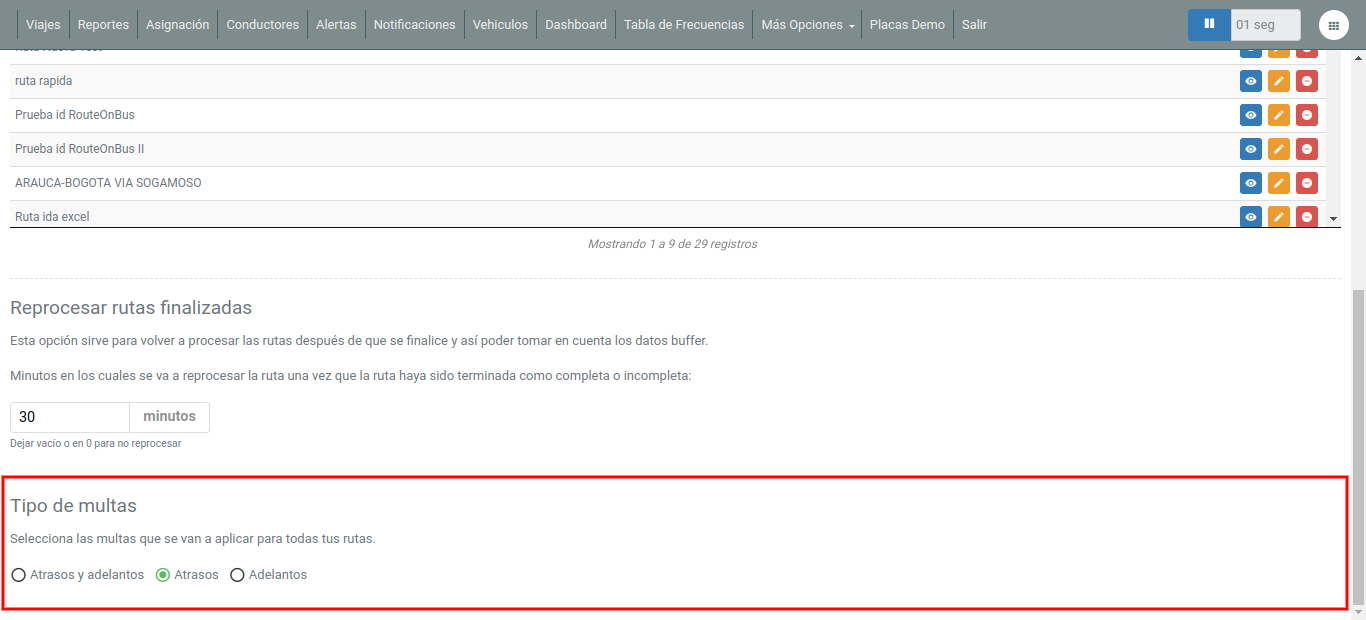
Se puede multar cuando el Activo llega antes o después del tiempo configurado al punto, únicamente cuando hay un atraso o cuando el Activo llegó antes al punto.